# FAQ
URL: /docs/faq
Source: /vercel/path0/docs/content/docs/(guides)/faq.mdx
Frequently asked questions about Stack
***
title: FAQ
description: Frequently asked questions about Stack
---------------------------------------------------
## Languages & Frameworks
For frontends, Stack supports TypeScript and JavaScript. For backends, Stack has a flexible [REST API](/rest-api) that can be used with any language or framework.
Yes! You can use our vanilla JavaScript SDK, or, if the framework is React-based, our React SDK.
Only the Next.js app router is currently officially supported, although some members of the community have successfully used the React or vanilla JavaScript SDKs with the pages router.
## Product
Ask yourself about ``:
* Is `` open-source?
* Is `` developer-friendly, well-documented, and lets you get started in minutes?
* Besides authentication, does `` also do authorization and user management (see feature list below)?
If you answered "no" to any of these questions, then that's how Stack Auth is different from ``.
Yes! You can [create users programmatically](/rest-api/server/users/create-user) using our [REST API](/rest-api).
## Other
Please carefully read our [CONTRIBUTING.md](https://github.com/hexclave/stack-auth/blob/dev/CONTRIBUTING.md).
# Overview
URL: /docs/overview
Source: /vercel/path0/docs/content/docs/(guides)/overview.mdx
***
title: Overview
lastModified: "2026-02-11"
--------------------------
Welcome to Stack Auth
Open-source authentication that gets you started in minutes.
### Quick Start (Next.js)
**1. Install the SDK**
```bash title="Terminal"
npx @stackframe/stack-cli@latest init
```
**2. Use authentication**
```tsx title="page.tsx"
const user = useUser({ or: "redirect" });
return
Hi, {user.displayName}
;
```
For other frameworks or detailed configuration, see the [full setup guide](./getting-started/setup).
{/* IF_PLATFORM: react-like */}
## Components
Pre-built UI components ready to use:
````````````
[View all components →](./components)
{/* END_PLATFORM */}
## Explore
Get started with Stack in 5 minutes
{/* IF_PLATFORM: react-like */}
Pre-built React components for sign-in, user management, and more
{/* END_PLATFORM */}
{/* IF_PLATFORM: js-like */}
Learn how to use Stack Auth's SDK
{/* END_PLATFORM */}
Explore Stack's REST APIs
## Apps
Enable powerful features through the dashboard:
Still have questions? Check out our [FAQ](./faq) or [join our Discord](https://discord.stack-auth.com).
#
URL: /docs/components/account-settings
Source: /vercel/path0/docs/content/docs/components/account-settings.mdx
***
title: ""
full: true
----------
## Demo
## Props
## Example
```tsx
import { AccountSettings } from '@stackframe/stack';
export default function MyAccountPage() {
return (
,
content: ,
subpath: '/custom',
}]}
/>
);
}
```
#
URL: /docs/components/credential-sign-in
Source: /vercel/path0/docs/content/docs/components/credential-sign-in.mdx
***
## title: ""
A component that renders a sign-in form with email and password fields.
Note that if credential sign-in is disabled in the dashboard, this component will still render. However, attempting to use it will result in an error being thrown.
For more information, please refer to the [custom pages guide](../customization/custom-pages).
## Props
This component does not accept any props.
## Example
```tsx
import { CredentialSignIn } from '@stackframe/stack';
export default function Page() {
return (
Sign In
);
}
```
#
URL: /docs/components/credential-sign-up
Source: /vercel/path0/docs/content/docs/components/credential-sign-up.mdx
***
## title: ""
A component that renders a sign-up form with email and password fields.
Note that if credential sign-up is disabled in the dashboard, this component will still render. However, attempting to use it will result in an error being thrown.
For more information, please refer to the [custom pages guide](../customization/custom-pages).
## Props
## Example
```tsx
import { CredentialSignUp } from '@stackframe/stack';
export default function Page() {
return (
Sign Up
);
}
```
#
URL: /docs/components/forgot-password
Source: /vercel/path0/docs/content/docs/components/forgot-password.mdx
***
## title: ""
Renders a forgot password component with options for full-page display.
## Props
## Example
```tsx
import { ForgotPassword } from '@stackframe/stack';
export const MyForgotPassword = () => {
return ;
}
```
# Components Overview
URL: /docs/components
Source: /vercel/path0/docs/content/docs/components/index.mdx
***
## title: Components Overview
Stack Auth provides a set of components for Next.js applications.
To get started with Stack Auth in your Next.js application, follow the [setup guide](./getting-started/setup). To see the hooks and objects in the Next.js SDK, see the [SDK reference](./sdk).
## Sign In and Sign Up
\
\
\
\
\
\
## User
\
\
## Teams & Organizations
\
## Utilities
\
\
\
#
URL: /docs/components/magic-link-sign-in
Source: /vercel/path0/docs/content/docs/components/magic-link-sign-in.mdx
***
## title: ""
A component that provides a magic link sign-in form with email input and OTP verification.
## Props
This component does not accept any props.
## Example
```tsx
import { MagicLinkSignIn } from '@stackframe/stack';
export function SignInPage() {
return (
Sign In
);
}
```
#
URL: /docs/components/oauth-button-group
Source: /vercel/path0/docs/content/docs/components/oauth-button-group.mdx
***
## title: ""
Renders all the OAuth buttons enabled on the project dashboard.
If there are no OAuth providers enabled in the dashboard, this component will be empty.
## Props
## Example
```tsx
import { OAuthButtonGroup } from '@stackframe/stack';
export default function Page() {
return (
Sign In
);
}
```
#
URL: /docs/components/oauth-button
Source: /vercel/path0/docs/content/docs/components/oauth-button.mdx
***
## title: ""
Renders a customized OAuth button for various providers to initiate sign-in or sign-up processes.
Note that if the specific OAuth provider is disabled in the dashboard, this component will still render. However, attempting to use it will result in an error being thrown.
For more information, please refer to the [custom pages guide](../customization/custom-pages).
## Props
## Example
```tsx
import { OAuthButton } from '@stackframe/stack';
export default function Page() {
return (
Sign In
);
}
```
The `OAuthButton` component automatically styles itself based on the provided OAuth provider and handles the sign-in or sign-up process when clicked.
#
URL: /docs/components/password-reset
Source: /vercel/path0/docs/content/docs/components/password-reset.mdx
***
## title: ""
Renders a password reset component based on the provided search parameters and optional full page display.
## Props
",
description: "An object containing search parameters, including the password reset code."
},
{
name: "fullPage",
type: "boolean",
description: "Determines whether to display the component in full page mode.",
optional: true,
default: "false"
}
]}
/>
## Example
```tsx title="app/reset-password.tsx"
import { PasswordReset } from '@stackframe/stack';
export function ResetPasswordPage(props: { searchParams: Record }) {
return (
);
}
```
#
URL: /docs/components/selected-team-switcher
Source: /vercel/path0/docs/content/docs/components/selected-team-switcher.mdx
***
## title: ""
For a comprehensive guide on using this component, refer to our [Team Selection documentation](../concepts/team-selection).
## Props
## Example
```tsx
import { SelectedTeamSwitcher } from '@stackframe/stack';
export default function Page() {
return (
);
}
```
#
URL: /docs/components/sign-up
Source: /vercel/path0/docs/content/docs/components/sign-up.mdx
***
## title: ""
A component that renders a sign-up page with various customization options.
For more information, please refer to the [custom pages guide](../customization/custom-pages).
## Props
## Example
```tsx
import { SignUp } from '@stackframe/stack';
export default function Page() {
return (
);
}
```
#
URL: /docs/components/stack-handler
Source: /vercel/path0/docs/content/docs/components/stack-handler.mdx
***
## title: ""
Renders the appropriate authentication or account-related component based on the current route.
For detailed usage instructions, please refer to the manual section of the [setup guide](../getting-started/setup).
## Props
> }",
description: "Props to pass to the rendered components."
}
]}
/>
## Example
```tsx title="app/handler/[...stack].tsx"
import { StackHandler } from '@stackframe/stack';
import { stackServerApp } from "@/stack/server";
export default function Handler(props: { params: any, searchParams: any }) {
return (
);
}
```
#
URL: /docs/components/stack-provider
Source: /vercel/path0/docs/content/docs/components/stack-provider.mdx
***
## title: ""
A React component that provides Stack context to its children.
For detailed usage instructions, please refer to the manual section of the [setup guide](../getting-started/setup).
## Props
",
description: "A mapping of English translations to translated equivalents. These will take priority over the translations from the language specified in the lang property. Note that the keys are case-sensitive. You can find a full list of supported strings on GitHub.",
optional: true
}
]}
/>
## Example
```tsx title="layout.tsx"
import { StackProvider } from '@stackframe/stack';
import { stackServerApp } from '@/stack/server';
function App() {
return (
{/* Your app content */}
);
}
```
#
URL: /docs/components/stack-theme
Source: /vercel/path0/docs/content/docs/components/stack-theme.mdx
***
## title: ""
A component that applies a theme to its children.
For more information, please refer to the [color and styles guide](../customization/custom-styles).
## Props
## Example
```tsx
const theme = {
light: {
primary: 'red',
},
dark: {
primary: '#00FF00',
},
radius: '8px',
}
// ...
{/* children */}
```
#
URL: /docs/components/user-button
Source: /vercel/path0/docs/content/docs/components/user-button.mdx
***
## title: ""
The `` renders a user button component with optional user information, color mode toggle, and extra menu items.
## Interactive Demo
Try out the UserButton component with different props and see the changes in real-time:
## Props
void | Promise",
description: "Function to be called when the color mode toggle button is clicked. If specified, a color mode toggle button will be shown.",
optional: true,
default: "undefined"
},
{
name: "extraItems",
type: "Array",
description: "Additional menu items to display. Each item should have the following properties:",
optional: true,
nested: [
{
name: "text",
type: "string",
description: "The text to display for the item."
},
{
name: "icon",
type: "React.ReactNode",
description: "The icon to display for the item."
},
{
name: "onClick",
type: "() => void | Promise",
description: "Function to be called when the item is clicked."
}
]
}
]}
/>
## Example
```tsx
'use client';
import { UserButton } from '@stackframe/stack';
export default function Page() {
return (
);
}
```
# SDK Overview
URL: /docs/sdk
Source: /vercel/path0/docs/content/docs/sdk/index.mdx
***
## title: SDK Overview
This is the SDK reference for Stack Auth's Next.js SDK.
For a list of components, see the [Components](../components/overview) page. For instructions on how to get started and how to use the SDK, see the [Setup & Installation](../getting-started/setup.mdx) page. If you are using a framework or programming language other than Next.js, you can use [our REST API](/api/overview).
export const sdkSections = [
{
title: "General",
items: [
{ name: "StackClientApp", href: "objects/stack-app#stackclientapp", icon: "object" },
{ name: "StackServerApp", href: "objects/stack-app#stackserverapp", icon: "object" },
{ name: "Project", href: "types/project#project", icon: "type" },
]
},
{
title: "Users & user data",
items: [
{ name: "CurrentUser", href: "types/user#currentuser", icon: "type" },
{ name: "ServerUser", href: "types/user#serveruser", icon: "type" },
{ name: "CurrentServerUser", href: "types/user#currentserveruser", icon: "type" },
{ name: "ContactChannel", href: "types/contact-channel#contactchannel", icon: "type" },
{ name: "ServerContactChannel", href: "types/contact-channel#servercontactchannel", icon: "type" },
]
},
{
title: "Teams",
items: [
{ name: "Team", href: "types/team#team", icon: "type" },
{ name: "ServerTeam", href: "types/team#serverteam", icon: "type" },
{ name: "TeamPermission", href: "types/team-permission#teampermission", icon: "type" },
{ name: "ServerTeamPermission", href: "types/team-permission#serverteampermission", icon: "type" },
{ name: "TeamUser", href: "types/team-user#teamuser", icon: "type" },
{ name: "ServerTeamUser", href: "types/team-user#serverteamuser", icon: "type" },
{ name: "TeamProfile", href: "types/team-profile#teamprofile", icon: "type" },
{ name: "ServerTeamProfile", href: "types/team-profile#serverteamprofile", icon: "type" },
]
},
{
title: "Email",
items: [
{ name: "SendEmailOptions", href: "types/email#sendemailoptions", icon: "type" },
]
},
{
title: "Payments & Items",
items: [
{ name: "Customer", href: "types/customer#customer", icon: "type" },
{ name: "Item", href: "types/item#item", icon: "type" },
{ name: "ServerItem", href: "types/item#serveritem", icon: "type" },
]
},
{
title: "Hooks",
items: [
{ name: "useStackApp", href: "hooks/use-stack-app", icon: "hook" },
{ name: "useUser", href: "hooks/use-user", icon: "hook" },
]
}
];
# SDK Overview
URL: /docs/sdk/overview-new
Source: /vercel/path0/docs/content/docs/sdk/overview-new.mdx
***
## title: SDK Overview
This is the SDK reference for Stack Auth's Next.js SDK.
For a list of components, see the [Components](../components) page. For instructions on how to get started and how to use the SDK, see the [Setup & Installation](../getting-started/setup.mdx) page. If you are using a framework or programming language other than Next.js, you can use [our REST API](../rest-api).
export const sdkSections = [
{
title: "General",
items: [
{ name: "StackClientApp", href: "./objects/stack-app#stackclientapp", icon: "object" },
{ name: "StackServerApp", href: "./sdk/objects/stack-app#stackserverapp", icon: "object" },
{ name: "Project", href: "./sdk/types/project#project", icon: "type" },
]
},
{
title: "Users & user data",
items: [
{ name: "CurrentUser", href: "./sdk/types/user#currentuser", icon: "type" },
{ name: "ServerUser", href: "./sdk/types/user#serveruser", icon: "type" },
{ name: "CurrentServerUser", href: "./sdk/types/user#currentserveruser", icon: "type" },
{ name: "ContactChannel", href: "./sdk/types/contact-channel#contactchannel", icon: "type" },
{ name: "ServerContactChannel", href: "./sdk/types/contact-channel#servercontactchannel", icon: "type" },
]
},
{
title: "Teams",
items: [
{ name: "Team", href: "./sdk/types/team#team", icon: "type" },
{ name: "ServerTeam", href: "./sdk/types/team#serverteam", icon: "type" },
{ name: "TeamPermission", href: "./sdk/types/team-permission#teampermission", icon: "type" },
{ name: "ServerTeamPermission", href: "./sdk/types/team-permission#serverteampermission", icon: "type" },
{ name: "TeamUser", href: "./sdk/types/team-user#teamuser", icon: "type" },
{ name: "ServerTeamUser", href: "./sdk/types/team-user#serverteamuser", icon: "type" },
{ name: "TeamProfile", href: "./sdk/types/team-profile#teamprofile", icon: "type" },
{ name: "ServerTeamProfile", href: "./sdk/types/team-profile#serverteamprofile", icon: "type" },
]
},
{
title: "Hooks",
items: [
{ name: "useStackApp", href: "./sdk/hooks/use-stack-app", icon: "hook" },
{ name: "useUser", href: "./sdk/hooks/use-user", icon: "hook" },
]
}
];
# Analytics
URL: /docs/apps/analytics
Source: /vercel/path0/docs/content/docs/(guides)/apps/analytics.mdx
Explore events, session replays, and SQL queries in your project's analytics dataset
***
title: Analytics
description: Explore events, session replays, and SQL queries in your project's analytics dataset
icon: ChartLine
---------------
The Analytics app gives you direct access to your project's analytics dataset in Stack Auth. You can inspect raw event tables, run ClickHouse SQL queries, and watch session replays to debug real user behavior.
## Overview
Analytics is organized into three areas in the dashboard:
* **Tables**: Browse event rows with sorting, search, and incremental loading
* **Queries**: Run and save reusable ClickHouse SQL queries
* **Replays**: Watch session replays and filter by user, team, duration, activity window, and click count
## How Analytics Works
Stack records analytics events and replay chunks, then exposes them through the Analytics app for read-only querying and investigation.
B[Stack event ingestion]
B --> C[ClickHouse data]
C --> D[Tables view]
C --> E[SQL query runner]
C --> F[Session replay UI]
`}
/>
### What Gets Tracked
Stack collects both client-side and server-side analytics events:
* **Client-side events**: browser interaction events like `$page-view` and `$click`
* **Server-side events**: currently `$token-refresh` and `$sign-up-rule-trigger`
## Enabling the Analytics App
To use analytics in your project:
1. Open your Stack Auth dashboard
2. Go to **Apps**
3. Open **Analytics**
4. Click **Enable**
## Quick Start
1. Enable Analytics in your Stack Auth dashboard (**Apps → Analytics**)
2. Initialize Stack Auth on your frontend with `StackClientApp`/`StackProvider`
3. Sign in with a real user session
4. Open the app and navigate/click around
5. Check **Analytics → Tables** to confirm events are arriving
After setup, Stack automatically captures client-side `$page-view` and `$click` events.
If you want replay recordings, also enable `analytics.replays.enabled` in your client app config.
## Tables
The **Tables** screen is the fastest way to inspect recent analytics records.
* Currently shows the `events` table
* Built-in ordering and client-side search
* Relative/absolute timestamp display toggle
* Row detail dialog for inspecting full JSON payloads
Use this view when you need to quickly answer "what just happened?" without writing SQL.
## Queries
The **Queries** screen is a ClickHouse SQL workspace for deeper analysis.
* Run read-only SQL queries with a timeout budget
* Query the users and analytics tables
* Save reusable queries into folders
* Re-run saved queries with one click
* Edit and overwrite saved query definitions
## Session Replays
The **Replays** screen helps you move from "an event happened" to "what the user actually saw."
* Filter sessions by user, team, duration, recency, and click count
* Play back multi-tab sessions
* Control playback speed
* Optionally skip inactive ranges
* Jump across click/page-view timeline markers
Use replays when metrics alone are not enough to explain user behavior.
### Enabling Replay Recording in the SDK
Session replay recording is disabled by default. To enable it, pass `analytics.replays.enabled: true` when creating your client app.
```ts
import { StackClientApp } from "@stackframe/stack";
export const stackClientApp = new StackClientApp({
projectId: process.env.NEXT_PUBLIC_STACK_PROJECT_ID!,
publishableClientKey: process.env.NEXT_PUBLIC_STACK_PUBLISHABLE_CLIENT_KEY!,
tokenStore: "nextjs-cookie",
analytics: {
replays: {
enabled: true,
// Optional. Defaults to true.
maskAllInputs: true,
},
},
});
```
`maskAllInputs` defaults to `true`, so form fields are masked unless you explicitly disable it.
## Best Practices
1. **Use Tables for quick incident triage**: the Tables UI is the fastest way to inspect recent `events` rows without writing SQL.
2. **Use Queries for repeatable analysis**: save important SQL in folders, and scope queries with filters/`LIMIT` so they stay within result and timeout limits.
3. **Use Replays for behavioral debugging**: start from an event pattern, then inspect matching session replays to understand what users actually did.
4. **Keep replay privacy defaults on**: leave `maskAllInputs` enabled unless you have a specific reason and a data-handling policy for unmasked inputs.
# API Keys
URL: /docs/apps/api-keys
Source: /vercel/path0/docs/content/docs/(guides)/apps/api-keys.mdx
Create and manage API keys for users and teams
***
title: API Keys
description: Create and manage API keys for users and teams
icon: KeyRound
--------------
The API Keys app enables your users to generate and manage API keys for programmatic access to your backend services. API keys provide a secure way to authenticate requests, allowing developers to associate API calls with specific users or teams. Stack Auth provides prebuilt UI components for users and teams to manage their own API keys.
## Overview
API keys allow your users to access your backend services programmatically without interactive authentication.
>+Server: API request with API key
Server->>+Stack: Validate API key
Stack-->>-Server: Return authenticated User object
Server->>Server: Process request
Server-->>-User: Response with data
`}
/>
Stack Auth provides two types of API keys:
### User API keys
User API keys are associated with individual users and allow them to authenticate with your API.
**app/components/create-api-key.tsx:**
```typescript title="app/components/create-api-key.tsx"
"use client";
import { useUser } from "@stackframe/stack";
export default function CreateApiKey() {
const user = useUser({ or: 'redirect' });
const handleCreateKey = async () => {
const apiKey = await user.createApiKey({
description: "My client application",
expiresAt: new Date(Date.now() + (90 * 24 * 60 * 60 * 1000)), // 90 days
});
console.log("API Key created:", apiKey.value);
};
return ;
}
```
**app/components/create-api-key.tsx:**
```typescript title="app/components/create-api-key.tsx"
import { stackServerApp } from "@/stack/server";
export default async function CreateApiKey() {
const user = await stackServerApp.getUser({ or: 'redirect' });
const apiKey = await user.createApiKey({
description: "Admin-provisioned API key",
expiresAt: new Date(Date.now() + (30 * 24 * 60 * 60 * 1000)), // 30 days
});
return
API Key: {apiKey.value}
;
}
```
**components/CreateApiKey.tsx:**
```typescript title="components/CreateApiKey.tsx"
"use client";
import { useUser } from "@stackframe/react";
export default function CreateApiKey() {
const user = useUser({ or: 'redirect' });
const handleCreateKey = async () => {
const apiKey = await user.createApiKey({
description: "My client application",
expiresAt: new Date(Date.now() + (90 * 24 * 60 * 60 * 1000)), // 90 days
});
console.log("API Key created:", apiKey.value);
};
return ;
}
```
**views.py:**
```python title="views.py"
import requests
from django.http import JsonResponse
def create_user_api_key(request):
# Get the current user's access token from session/cookie
access_token = request.COOKIES.get('stack-access-token')
# Create API key via client API
response = requests.post(
'https://api.stack-auth.com/api/v1/user-api-keys',
headers={
'x-stack-access-type': 'client',
'x-stack-project-id': stack_project_id,
'x-stack-publishable-client-key': stack_publishable_client_key,
'x-stack-access-token': access_token,
},
json={
'user_id': 'me',
'description': 'My client application',
'expires_at_millis': int((time.time() + 90 * 24 * 60 * 60) * 1000),
}
)
if response.status_code != 200:
raise Exception(f"Failed to create API key: {response.text}")
return JsonResponse(response.json())
```
**main.py:**
```python title="main.py"
import requests
import time
from fastapi import Cookie, HTTPException
@app.post("/api/create-user-api-key")
async def create_user_api_key(stack_access_token: str = Cookie(None, alias="stack-access-token")):
if not stack_access_token:
raise HTTPException(status_code=401, detail="Not authenticated")
# Create API key via client API
response = requests.post(
'https://api.stack-auth.com/api/v1/user-api-keys',
headers={
'x-stack-access-type': 'client',
'x-stack-project-id': stack_project_id,
'x-stack-publishable-client-key': stack_publishable_client_key,
'x-stack-access-token': stack_access_token,
},
json={
'user_id': 'me',
'description': 'My client application',
'expires_at_millis': int((time.time() + 90 * 24 * 60 * 60) * 1000),
}
)
if response.status_code != 200:
raise HTTPException(status_code=response.status_code, detail=response.text)
return response.json()
```
**app.py:**
```python title="app.py"
import requests
import time
from flask import request, jsonify
@app.route('/api/create-user-api-key', methods=['POST'])
def create_user_api_key():
access_token = request.cookies.get('stack-access-token')
if not access_token:
return jsonify({'error': 'Not authenticated'}), 401
# Create API key via client API
response = requests.post(
'https://api.stack-auth.com/api/v1/user-api-keys',
headers={
'x-stack-access-type': 'client',
'x-stack-project-id': stack_project_id,
'x-stack-publishable-client-key': stack_publishable_client_key,
'x-stack-access-token': access_token,
},
json={
'user_id': 'me',
'description': 'My client application',
'expires_at_millis': int((time.time() + 90 * 24 * 60 * 60) * 1000),
}
)
if response.status_code != 200:
return jsonify({'error': response.text}), response.status_code
return jsonify(response.json())
```
### Team API keys
Team API keys are associated with teams and can be used to provide access to team resources over your API.
**app/components/create-team-api-key.tsx:**
```typescript title="app/components/create-team-api-key.tsx"
"use client";
import { useUser } from "@stackframe/stack";
export default function CreateTeamApiKey({ teamId }: { teamId: string }) {
const user = useUser({ or: 'redirect' });
const team = user.useTeam(teamId);
const handleCreateKey = async () => {
if (!team) return;
const teamApiKey = await team.createApiKey({
description: "Team integration service",
expiresAt: new Date(Date.now() + (60 * 24 * 60 * 60 * 1000)), // 60 days
});
console.log("Team API Key created:", teamApiKey.value);
};
return ;
}
```
**app/components/create-team-api-key.tsx:**
```typescript title="app/components/create-team-api-key.tsx"
import { stackServerApp } from "@/stack/server";
export default async function CreateTeamApiKey({ teamId }: { teamId: string }) {
const team = await stackServerApp.getTeam(teamId);
if (!team) {
return
Team not found
;
}
const teamApiKey = await team.createApiKey({
description: "Admin-provisioned team API key",
expiresAt: new Date(Date.now() + (30 * 24 * 60 * 60 * 1000)), // 30 days
});
return
Team API Key: {teamApiKey.value}
;
}
```
**components/CreateTeamApiKey.tsx:**
```typescript title="components/CreateTeamApiKey.tsx"
"use client";
import { useUser } from "@stackframe/react";
export default function CreateTeamApiKey({ teamId }: { teamId: string }) {
const user = useUser({ or: 'redirect' });
const team = user.useTeam(teamId);
const handleCreateKey = async () => {
if (!team) return;
const teamApiKey = await team.createApiKey({
description: "Team integration service",
expiresAt: new Date(Date.now() + (60 * 24 * 60 * 60 * 1000)), // 60 days
});
console.log("Team API Key created:", teamApiKey.value);
};
return ;
}
```
**views.py:**
```python title="views.py"
import requests
import time
from django.http import JsonResponse
def create_team_api_key(request, team_id):
# Get the current user's access token from session/cookie
access_token = request.COOKIES.get('stack-access-token')
# Create team API key via client API
response = requests.post(
'https://api.stack-auth.com/api/v1/team-api-keys',
headers={
'x-stack-access-type': 'client',
'x-stack-project-id': stack_project_id,
'x-stack-publishable-client-key': stack_publishable_client_key,
'x-stack-access-token': access_token,
},
json={
'team_id': team_id,
'description': 'Team integration service',
'expires_at_millis': int((time.time() + 60 * 24 * 60 * 60) * 1000),
}
)
if response.status_code != 200:
raise Exception(f"Failed to create team API key: {response.text}")
return JsonResponse(response.json())
```
**main.py:**
```python title="main.py"
import requests
import time
from fastapi import Cookie, HTTPException
@app.post("/api/teams/{team_id}/api-keys")
async def create_team_api_key(team_id: str, stack_access_token: str = Cookie(None, alias="stack-access-token")):
if not stack_access_token:
raise HTTPException(status_code=401, detail="Not authenticated")
# Create team API key via client API
response = requests.post(
'https://api.stack-auth.com/api/v1/team-api-keys',
headers={
'x-stack-access-type': 'client',
'x-stack-project-id': stack_project_id,
'x-stack-publishable-client-key': stack_publishable_client_key,
'x-stack-access-token': stack_access_token,
},
json={
'team_id': team_id,
'description': 'Team integration service',
'expires_at_millis': int((time.time() + 60 * 24 * 60 * 60) * 1000),
}
)
if response.status_code != 200:
raise HTTPException(status_code=response.status_code, detail=response.text)
return response.json()
```
**app.py:**
```python title="app.py"
import requests
import time
from flask import request, jsonify
@app.route('/api/teams//api-keys', methods=['POST'])
def create_team_api_key(team_id):
access_token = request.cookies.get('stack-access-token')
if not access_token:
return jsonify({'error': 'Not authenticated'}), 401
# Create team API key via client API
response = requests.post(
'https://api.stack-auth.com/api/v1/team-api-keys',
headers={
'x-stack-access-type': 'client',
'x-stack-project-id': stack_project_id,
'x-stack-publishable-client-key': stack_publishable_client_key,
'x-stack-access-token': access_token,
},
json={
'team_id': team_id,
'description': 'Team integration service',
'expires_at_millis': int((time.time() + 60 * 24 * 60 * 60) * 1000),
}
)
if response.status_code != 200:
return jsonify({'error': response.text}), response.status_code
return jsonify(response.json())
```
## Enabling the API Keys App
To use API keys in your application, you need to enable the API Keys app in your Stack Auth dashboard:
1. Navigate to your Stack Auth dashboard
2. Go to the **Apps** section
3. Find and click on **API Keys** in the app store
4. Click the **Enable** button
Once enabled, you can configure User API Keys and Team API Keys in the app settings. The app will provide your users with a prebuilt UI to manage their own API keys.
## Prebuilt UI Components
Stack Auth provides prebuilt UI components that allow your users to manage their own API keys without any additional code:
### User API Keys UI
For frameworks that support React components, the `` component includes an API Keys tab where users can:
* View all their active API keys
* Create new API keys with custom descriptions and expiration dates
* Revoke existing API keys
* See when each key was created and when it expires.
**Next.js:**
```typescript title="app/src/account-page.tsx"
import { AccountSettings } from '@stackframe/stack';
export default function MyAccountPage() {
return (
);
}
```
**React:**
```typescript title="app/src/account-page.tsx"
import { AccountSettings } from '@stackframe/react';
export default function MyAccountPage() {
return (
);
}
```
### Team API Keys UI
For team API keys, the team settings page automatically includes an API Keys section when:
* The API Keys app is enabled
* `allowTeamApiKeys` is configured in your project settings
* The user has the `$manage_api_keys` permission for the team
Users with appropriate permissions can manage team API keys directly from the team settings interface.
## Working with API Keys
### Creating User API Keys
**app/components/create-api-key.tsx:**
```typescript title="app/components/create-api-key.tsx"
"use client";
import { useUser } from "@stackframe/stack";
export default function CreateApiKey() {
const user = useUser({ or: 'redirect' });
const handleCreateKey = async () => {
const apiKey = await user.createApiKey({
description: "My client application",
expiresAt: new Date(Date.now() + (90 * 24 * 60 * 60 * 1000)), // 90 days
});
console.log("API Key created:", apiKey.value);
};
return ;
}
```
**app/components/create-api-key.tsx:**
```typescript title="app/components/create-api-key.tsx"
import { stackServerApp } from "@/stack/server";
export default async function CreateApiKey() {
const user = await stackServerApp.getUser({ or: 'redirect' });
const apiKey = await user.createApiKey({
description: "Admin-provisioned API key",
expiresAt: new Date(Date.now() + (30 * 24 * 60 * 60 * 1000)), // 30 days
});
return
API Key: {apiKey.value}
;
}
```
**components/CreateApiKey.tsx:**
```typescript title="components/CreateApiKey.tsx"
"use client";
import { useUser } from "@stackframe/react";
export default function CreateApiKey() {
const user = useUser({ or: 'redirect' });
const handleCreateKey = async () => {
const apiKey = await user.createApiKey({
description: "My client application",
expiresAt: new Date(Date.now() + (90 * 24 * 60 * 60 * 1000)), // 90 days
});
console.log("API Key created:", apiKey.value);
};
return ;
}
```
**views.py:**
```python title="views.py"
import requests
from django.http import JsonResponse
def create_user_api_key(request):
# Get the current user's access token from session/cookie
access_token = request.COOKIES.get('stack-access-token')
# Create API key via client API
response = requests.post(
'https://api.stack-auth.com/api/v1/user-api-keys',
headers={
'x-stack-access-type': 'client',
'x-stack-project-id': stack_project_id,
'x-stack-publishable-client-key': stack_publishable_client_key,
'x-stack-access-token': access_token,
},
json={
'user_id': 'me',
'description': 'My client application',
'expires_at_millis': int((time.time() + 90 * 24 * 60 * 60) * 1000),
}
)
if response.status_code != 200:
raise Exception(f"Failed to create API key: {response.text}")
return JsonResponse(response.json())
```
**main.py:**
```python title="main.py"
import requests
import time
from fastapi import Cookie, HTTPException
@app.post("/api/create-user-api-key")
async def create_user_api_key(stack_access_token: str = Cookie(None, alias="stack-access-token")):
if not stack_access_token:
raise HTTPException(status_code=401, detail="Not authenticated")
# Create API key via client API
response = requests.post(
'https://api.stack-auth.com/api/v1/user-api-keys',
headers={
'x-stack-access-type': 'client',
'x-stack-project-id': stack_project_id,
'x-stack-publishable-client-key': stack_publishable_client_key,
'x-stack-access-token': stack_access_token,
},
json={
'user_id': 'me',
'description': 'My client application',
'expires_at_millis': int((time.time() + 90 * 24 * 60 * 60) * 1000),
}
)
if response.status_code != 200:
raise HTTPException(status_code=response.status_code, detail=response.text)
return response.json()
```
**app.py:**
```python title="app.py"
import requests
import time
from flask import request, jsonify
@app.route('/api/create-user-api-key', methods=['POST'])
def create_user_api_key():
access_token = request.cookies.get('stack-access-token')
if not access_token:
return jsonify({'error': 'Not authenticated'}), 401
# Create API key via client API
response = requests.post(
'https://api.stack-auth.com/api/v1/user-api-keys',
headers={
'x-stack-access-type': 'client',
'x-stack-project-id': stack_project_id,
'x-stack-publishable-client-key': stack_publishable_client_key,
'x-stack-access-token': access_token,
},
json={
'user_id': 'me',
'description': 'My client application',
'expires_at_millis': int((time.time() + 90 * 24 * 60 * 60) * 1000),
}
)
if response.status_code != 200:
return jsonify({'error': response.text}), response.status_code
return jsonify(response.json())
```
### Creating Team API Keys
**app/components/create-team-api-key.tsx:**
```typescript title="app/components/create-team-api-key.tsx"
"use client";
import { useUser } from "@stackframe/stack";
export default function CreateTeamApiKey({ teamId }: { teamId: string }) {
const user = useUser({ or: 'redirect' });
const team = user.useTeam(teamId);
const handleCreateKey = async () => {
if (!team) return;
const teamApiKey = await team.createApiKey({
description: "Team integration service",
expiresAt: new Date(Date.now() + (60 * 24 * 60 * 60 * 1000)), // 60 days
});
console.log("Team API Key created:", teamApiKey.value);
};
return ;
}
```
**app/components/create-team-api-key.tsx:**
```typescript title="app/components/create-team-api-key.tsx"
import { stackServerApp } from "@/stack/server";
export default async function CreateTeamApiKey({ teamId }: { teamId: string }) {
const team = await stackServerApp.getTeam(teamId);
if (!team) {
return
Team not found
;
}
const teamApiKey = await team.createApiKey({
description: "Admin-provisioned team API key",
expiresAt: new Date(Date.now() + (30 * 24 * 60 * 60 * 1000)), // 30 days
});
return
Team API Key: {teamApiKey.value}
;
}
```
**components/CreateTeamApiKey.tsx:**
```typescript title="components/CreateTeamApiKey.tsx"
"use client";
import { useUser } from "@stackframe/react";
export default function CreateTeamApiKey({ teamId }: { teamId: string }) {
const user = useUser({ or: 'redirect' });
const team = user.useTeam(teamId);
const handleCreateKey = async () => {
if (!team) return;
const teamApiKey = await team.createApiKey({
description: "Team integration service",
expiresAt: new Date(Date.now() + (60 * 24 * 60 * 60 * 1000)), // 60 days
});
console.log("Team API Key created:", teamApiKey.value);
};
return ;
}
```
**views.py:**
```python title="views.py"
import requests
import time
from django.http import JsonResponse
def create_team_api_key(request, team_id):
# Get the current user's access token from session/cookie
access_token = request.COOKIES.get('stack-access-token')
# Create team API key via client API
response = requests.post(
'https://api.stack-auth.com/api/v1/team-api-keys',
headers={
'x-stack-access-type': 'client',
'x-stack-project-id': stack_project_id,
'x-stack-publishable-client-key': stack_publishable_client_key,
'x-stack-access-token': access_token,
},
json={
'team_id': team_id,
'description': 'Team integration service',
'expires_at_millis': int((time.time() + 60 * 24 * 60 * 60) * 1000),
}
)
if response.status_code != 200:
raise Exception(f"Failed to create team API key: {response.text}")
return JsonResponse(response.json())
```
**main.py:**
```python title="main.py"
import requests
import time
from fastapi import Cookie, HTTPException
@app.post("/api/teams/{team_id}/api-keys")
async def create_team_api_key(team_id: str, stack_access_token: str = Cookie(None, alias="stack-access-token")):
if not stack_access_token:
raise HTTPException(status_code=401, detail="Not authenticated")
# Create team API key via client API
response = requests.post(
'https://api.stack-auth.com/api/v1/team-api-keys',
headers={
'x-stack-access-type': 'client',
'x-stack-project-id': stack_project_id,
'x-stack-publishable-client-key': stack_publishable_client_key,
'x-stack-access-token': stack_access_token,
},
json={
'team_id': team_id,
'description': 'Team integration service',
'expires_at_millis': int((time.time() + 60 * 24 * 60 * 60) * 1000),
}
)
if response.status_code != 200:
raise HTTPException(status_code=response.status_code, detail=response.text)
return response.json()
```
**app.py:**
```python title="app.py"
import requests
import time
from flask import request, jsonify
@app.route('/api/teams//api-keys', methods=['POST'])
def create_team_api_key(team_id):
access_token = request.cookies.get('stack-access-token')
if not access_token:
return jsonify({'error': 'Not authenticated'}), 401
# Create team API key via client API
response = requests.post(
'https://api.stack-auth.com/api/v1/team-api-keys',
headers={
'x-stack-access-type': 'client',
'x-stack-project-id': stack_project_id,
'x-stack-publishable-client-key': stack_publishable_client_key,
'x-stack-access-token': access_token,
},
json={
'team_id': team_id,
'description': 'Team integration service',
'expires_at_millis': int((time.time() + 60 * 24 * 60 * 60) * 1000),
}
)
if response.status_code != 200:
return jsonify({'error': response.text}), response.status_code
return jsonify(response.json())
```
### Listing API Keys
**app/components/api-keys-list.tsx:**
```typescript title="app/components/api-keys-list.tsx"
"use client";
import { useUser } from "@stackframe/stack";
export default function ApiKeysList() {
const user = useUser({ or: 'redirect' });
const apiKeys = user.useApiKeys();
return (
;
}
```
**views.py:**
```python title="views.py"
import requests
import time
from django.http import JsonResponse
def check_api_key_validity(request, api_key_id):
# Get the current user's access token from session/cookie
access_token = request.COOKIES.get('stack-access-token')
# Get API key details via client API
response = requests.get(
f'https://api.stack-auth.com/api/v1/user-api-keys/{api_key_id}',
headers={
'x-stack-access-type': 'client',
'x-stack-project-id': stack_project_id,
'x-stack-publishable-client-key': stack_publishable_client_key,
'x-stack-access-token': access_token,
}
)
if response.status_code != 200:
return JsonResponse({'error': 'API key not found'}, status=404)
api_key = response.json()
# Check if manually revoked
if api_key.get('manually_revoked_at_millis'):
return JsonResponse({
'valid': False,
'reason': 'manually-revoked'
})
# Check if expired
if api_key.get('expires_at_millis'):
if api_key['expires_at_millis'] < time.time() * 1000:
return JsonResponse({
'valid': False,
'reason': 'expired'
})
return JsonResponse({'valid': True})
```
**main.py:**
```python title="main.py"
import requests
import time
from fastapi import Cookie, HTTPException
@app.get("/api/check-api-key/{api_key_id}")
async def check_api_key_validity(api_key_id: str, stack_access_token: str = Cookie(None, alias="stack-access-token")):
if not stack_access_token:
raise HTTPException(status_code=401, detail="Not authenticated")
# Get API key details via client API
response = requests.get(
f'https://api.stack-auth.com/api/v1/user-api-keys/{api_key_id}',
headers={
'x-stack-access-type': 'client',
'x-stack-project-id': stack_project_id,
'x-stack-publishable-client-key': stack_publishable_client_key,
'x-stack-access-token': stack_access_token,
}
)
if response.status_code != 200:
raise HTTPException(status_code=404, detail="API key not found")
api_key = response.json()
# Check if manually revoked
if api_key.get('manually_revoked_at_millis'):
return {
'valid': False,
'reason': 'manually-revoked'
}
# Check if expired
if api_key.get('expires_at_millis'):
if api_key['expires_at_millis'] < time.time() * 1000:
return {
'valid': False,
'reason': 'expired'
}
return {'valid': True}
```
**app.py:**
```python title="app.py"
import requests
import time
from flask import request, jsonify
@app.route('/api/check-api-key/', methods=['GET'])
def check_api_key_validity(api_key_id):
access_token = request.cookies.get('stack-access-token')
if not access_token:
return jsonify({'error': 'Not authenticated'}), 401
# Get API key details via client API
response = requests.get(
f'https://api.stack-auth.com/api/v1/user-api-keys/{api_key_id}',
headers={
'x-stack-access-type': 'client',
'x-stack-project-id': stack_project_id,
'x-stack-publishable-client-key': stack_publishable_client_key,
'x-stack-access-token': access_token,
}
)
if response.status_code != 200:
return jsonify({'error': 'API key not found'}), 404
api_key = response.json()
# Check if manually revoked
if api_key.get('manually_revoked_at_millis'):
return jsonify({
'valid': False,
'reason': 'manually-revoked'
})
# Check if expired
if api_key.get('expires_at_millis'):
if api_key['expires_at_millis'] < time.time() * 1000:
return jsonify({
'valid': False,
'reason': 'expired'
})
return jsonify({'valid': True})
```
## Authenticating Requests with API Keys
To validate incoming API requests with API keys on your server, use the `getUser` or `getTeam` methods with the `apiKey` option:
### Validating User API Keys
**Next.js:**
```typescript title="app/api/protected/route.ts"
import { stackServerApp } from "@/stack/server";
export async function GET(request: Request) {
// Extract the API key from the request headers
const apiKey = request.headers.get('X-Stack-Api-Key');
if (!apiKey) {
return Response.json({ error: 'API key required' }, { status: 401 });
}
// Validate the API key and get the associated user
const user = await stackServerApp.getUser({ apiKey });
if (!user) {
return Response.json({ error: 'Invalid API key' }, { status: 401 });
}
// Process the request with the authenticated user
const data = {
userId: user.id,
email: user.primaryEmail,
// Your API logic here
};
return Response.json(data);
}
```
**Express:**
```javascript title="server.js"
import { StackServerApp } from "@stackframe/js";
const stackServerApp = new StackServerApp({
projectId: process.env.STACK_PROJECT_ID,
publishableClientKey: process.env.STACK_PUBLISHABLE_CLIENT_KEY,
secretServerKey: process.env.STACK_SECRET_SERVER_KEY,
tokenStore: "memory",
});
app.get('/api/protected', async (req, res) => {
const apiKey = req.headers['x-stack-api-key'];
if (!apiKey) {
return res.status(401).json({ error: 'API key required' });
}
const user = await stackServerApp.getUser({ apiKey });
if (!user) {
return res.status(401).json({ error: 'Invalid API key' });
}
res.json({
userId: user.id,
email: user.primaryEmail,
});
});
```
**Node.js:**
```javascript title="lib/auth.js"
import { StackServerApp } from "@stackframe/js";
const stackServerApp = new StackServerApp({
projectId: process.env.STACK_PROJECT_ID,
publishableClientKey: process.env.STACK_PUBLISHABLE_CLIENT_KEY,
secretServerKey: process.env.STACK_SECRET_SERVER_KEY,
tokenStore: "memory",
});
async function validateApiKey(apiKey) {
const user = await stackServerApp.getUser({ apiKey });
if (!user) {
throw new Error('Invalid API key');
}
return user;
}
```
**Django:**
```python title="views.py"
import requests
from django.http import JsonResponse
def protected_view(request):
api_key = request.headers.get('X-Stack-Api-Key')
if not api_key:
return JsonResponse({'error': 'API key required'}, status=401)
# Validate API key with Stack Auth server API
response = requests.post(
'https://api.stack-auth.com/api/v1/user-api-keys/check',
headers={
'x-stack-access-type': 'server',
'x-stack-project-id': stack_project_id,
'x-stack-secret-server-key': stack_secret_server_key,
},
json={
'api_key': api_key,
}
)
if response.status_code != 200:
return JsonResponse({'error': 'Invalid API key'}, status=401)
api_key_data = response.json()
return JsonResponse({'userId': api_key_data['user_id']})
```
**FastAPI:**
```python title="main.py"
import requests
from fastapi import FastAPI, Header, HTTPException
app = FastAPI()
@app.get("/api/protected")
async def protected_route(x_stack_api_key: str = Header(None)):
if not x_stack_api_key:
raise HTTPException(status_code=401, detail="API key required")
# Validate API key with Stack Auth server API
response = requests.post(
'https://api.stack-auth.com/api/v1/user-api-keys/check',
headers={
'x-stack-access-type': 'server',
'x-stack-project-id': stack_project_id,
'x-stack-secret-server-key': stack_secret_server_key,
},
json={
'api_key': x_stack_api_key,
}
)
if response.status_code != 200:
raise HTTPException(status_code=401, detail="Invalid API key")
api_key_data = response.json()
return {"userId": api_key_data['user_id']}
```
**Flask:**
```python title="app.py"
import requests
from flask import Flask, request, jsonify
app = Flask(__name__)
@app.route('/api/protected')
def protected_route():
api_key = request.headers.get('X-Stack-Api-Key')
if not api_key:
return jsonify({'error': 'API key required'}), 401
# Validate API key with Stack Auth server API
response = requests.post(
'https://api.stack-auth.com/api/v1/user-api-keys/check',
headers={
'x-stack-access-type': 'server',
'x-stack-project-id': stack_project_id,
'x-stack-secret-server-key': stack_secret_server_key,
},
json={
'api_key': api_key,
}
)
if response.status_code != 200:
return jsonify({'error': 'Invalid API key'}), 401
api_key_data = response.json()
return jsonify({'userId': api_key_data['user_id']})
```
### Validating Team API Keys
For team API keys, use `getTeam` with the `apiKey` option:
**Next.js:**
```typescript title="app/api/team-protected/route.ts"
import { stackServerApp } from "@/stack/server";
export async function POST(request: Request) {
const apiKey = request.headers.get('X-Stack-Api-Key');
if (!apiKey) {
return Response.json({ error: 'API key required' }, { status: 401 });
}
// Validate the team API key and get the associated team
const team = await stackServerApp.getTeam({ apiKey });
if (!team) {
return Response.json({ error: 'Invalid team API key' }, { status: 401 });
}
// Process team-level request
const teamData = {
teamId: team.id,
teamName: team.displayName,
// Your team API logic here
};
return Response.json(teamData);
}
```
**Express:**
```javascript title="server.js"
import { StackServerApp } from "@stackframe/js";
const stackServerApp = new StackServerApp({
projectId: process.env.STACK_PROJECT_ID,
publishableClientKey: process.env.STACK_PUBLISHABLE_CLIENT_KEY,
secretServerKey: process.env.STACK_SECRET_SERVER_KEY,
tokenStore: "memory",
});
app.post('/api/team-protected', async (req, res) => {
const apiKey = req.headers['x-stack-api-key'];
if (!apiKey) {
return res.status(401).json({ error: 'API key required' });
}
const team = await stackServerApp.getTeam({ apiKey });
if (!team) {
return res.status(401).json({ error: 'Invalid team API key' });
}
res.json({
teamId: team.id,
teamName: team.displayName,
});
});
```
**Node.js:**
```javascript title="lib/auth.js"
import { StackServerApp } from "@stackframe/js";
const stackServerApp = new StackServerApp({
projectId: process.env.STACK_PROJECT_ID,
publishableClientKey: process.env.STACK_PUBLISHABLE_CLIENT_KEY,
secretServerKey: process.env.STACK_SECRET_SERVER_KEY,
tokenStore: "memory",
});
async function validateTeamApiKey(apiKey) {
const team = await stackServerApp.getTeam({ apiKey });
if (!team) {
throw new Error('Invalid team API key');
}
return team;
}
```
**Django:**
```python title="views.py"
import requests
from django.http import JsonResponse
def team_protected_view(request):
api_key = request.headers.get('X-Stack-Api-Key')
if not api_key:
return JsonResponse({'error': 'API key required'}, status=401)
# Validate team API key with Stack Auth server API
response = requests.post(
'https://api.stack-auth.com/api/v1/team-api-keys/check',
headers={
'x-stack-access-type': 'server',
'x-stack-project-id': stack_project_id,
'x-stack-secret-server-key': stack_secret_server_key,
},
json={
'api_key': api_key,
}
)
if response.status_code != 200:
return JsonResponse({'error': 'Invalid team API key'}, status=401)
api_key_data = response.json()
return JsonResponse({'teamId': api_key_data['team_id']})
```
**FastAPI:**
```python title="main.py"
import requests
from fastapi import FastAPI, Header, HTTPException
app = FastAPI()
@app.post("/api/team-protected")
async def team_protected_route(x_stack_api_key: str = Header(None)):
if not x_stack_api_key:
raise HTTPException(status_code=401, detail="API key required")
# Validate team API key with Stack Auth server API
response = requests.post(
'https://api.stack-auth.com/api/v1/team-api-keys/check',
headers={
'x-stack-access-type': 'server',
'x-stack-project-id': stack_project_id,
'x-stack-secret-server-key': stack_secret_server_key,
},
json={
'api_key': x_stack_api_key,
}
)
if response.status_code != 200:
raise HTTPException(status_code=401, detail="Invalid team API key")
api_key_data = response.json()
return {"teamId": api_key_data['team_id']}
```
**Flask:**
```python title="app.py"
import requests
from flask import Flask, request, jsonify
app = Flask(__name__)
@app.route('/api/team-protected', methods=['POST'])
def team_protected_route():
api_key = request.headers.get('X-Stack-Api-Key')
if not api_key:
return jsonify({'error': 'API key required'}), 401
# Validate team API key with Stack Auth server API
response = requests.post(
'https://api.stack-auth.com/api/v1/team-api-keys/check',
headers={
'x-stack-access-type': 'server',
'x-stack-project-id': stack_project_id,
'x-stack-secret-server-key': stack_secret_server_key,
},
json={
'api_key': api_key,
}
)
if response.status_code != 200:
return jsonify({'error': 'Invalid team API key'}), 401
api_key_data = response.json()
return jsonify({'teamId': api_key_data['team_id']})
```
### Best Practices for API Key Authentication
1. **Use HTTPS**: Always use HTTPS in production to protect API keys in transit
2. **Validate on every request**: Never trust client-side validation alone
3. **Use appropriate headers**: Common header names include `X-Stack-Api-Key`, `Authorization: Bearer `, or `X-Api-Key`
4. **Rate limiting**: Implement rate limiting to prevent abuse
5. **Monitor usage**: Track API key usage to detect anomalies
# Emails
URL: /docs/apps/emails
Source: /vercel/path0/docs/content/docs/(guides)/apps/emails.mdx
Send custom emails to your users with Stack Auth's email system.
***
title: Emails
description: Send custom emails to your users with Stack Auth's email system.
icon: Mail
----------
Stack Auth provides emails that allows you to send custom emails to your users. The system supports both custom HTML emails and template-based emails with theming.
## Email Types:
There are two types of emails that you can send to your users:
* **Transactional Emails**: Transactional emails are those required for your user to use your application. These emails cannot be opted out of.
* **Marketing Emails**: Marketing emails always contain an unsubscribe link and may be more general marketing material related to your application/company.
Never send marketing emails as transactional emails, as this can quickly lead to your domain being blacklisted by email spam filters.
## Overview
The email system provides:
* **Email Sending**: Send custom emails to users via the `sendEmail` method on `StackServerApp`
* **Email Templates**: Use predefined email templates for common authentication flows
* **Email Themes**: Apply consistent styling to your emails
* **Notification Categories**: Allow users to control which emails they receive
## Server-Side Email Sending
### Basic Email Sending
Use the `sendEmail` method on your server app to send emails to users:
```typescript
import { stackServerApp } from './stack';
// Send a custom HTML email
const result = await stackServerApp.sendEmail({
userIds: ['user-id-1', 'user-id-2'],
subject: 'Welcome to our platform!',
html: '
Welcome!
Thanks for joining us.
',
});
if (result.status === 'error') {
console.error('Failed to send email:', result.error);
}
```
### Template-Based Emails
Send emails using predefined templates with variables:
```typescript
// Send email using a template
const result = await stackServerApp.sendEmail({
userIds: ['user-id'],
templateId: 'welcome-template',
subject: 'Welcome to our platform!',
variables: {
userName: 'John Doe',
activationUrl: 'https://yourapp.com/activate/token123',
supportEmail: 'support@yourapp.com',
},
});
```
### Email Options
The `sendEmail` method accepts the following options:
```typescript
type SendEmailOptions = {
userIds: string[]; // Array of user IDs to send to
themeId?: string | null | false; // Theme to apply (optional)
subject?: string; // Email subject
notificationCategoryName?: string; // Notification category for user preferences
html?: string; // Custom HTML content
templateId?: string; // Template ID to use
variables?: Record; // Template variables
};
```
### Error Handling
The `sendEmail` method returns a `Result` type that can contain specific errors:
```typescript
const result = await stackServerApp.sendEmail({
userIds: ['user-id'],
html: '
Hello!
',
subject: 'Test Email',
});
if (result.status === 'error') {
switch (result.error.code) {
case 'REQUIRES_CUSTOM_EMAIL_SERVER':
console.error('Please configure a custom email server');
break;
case 'SCHEMA_ERROR':
console.error('Invalid email data provided');
break;
case 'USER_ID_DOES_NOT_EXIST':
console.error('One or more user IDs do not exist');
break;
}
}
```
## Built-in Email Templates
Stack Auth provides several built-in email templates for common authentication flows:
* **Email Verification**: `email_verification` - Sent when users need to verify their email
* **Password Reset**: `password_reset` - Sent when users request password reset
* **Magic Link**: `magic_link` - Sent for passwordless authentication
* **Team Invitation**: `team_invitation` - Sent when users are invited to teams
* **Sign-in Invitation**: `sign_in_invitation` - Sent to invite users to sign up
* **Payment Receipt**: `payment_receipt` - Sent when a payment succeeds (one-time or subscription)
* **Payment Failed**: `payment_failed` - Sent when a payment fails (one-time or subscription)
These templates can be customized through the admin interface or programmatically.
## Email Configuration
Email configuration is managed through the Stack Auth dashboard or admin API, not directly in your application code. You have two options:
### Shared Email Provider (Development)
For development and testing, you can use Stack's shared email provider. This sends emails from `noreply@sent-with-hexclave.com` and is configured through your project settings in the Stack Auth dashboard.
* Go to your project's Email settings in the dashboard
* Select "Shared" as your email server type
* No additional configuration required
### Custom Email Server (Production)
For production, configure your own SMTP server through the dashboard:
* Go to your project's Email settings in the dashboard
* Select "Custom SMTP server" as your email server type
* Configure the following settings:
* **Host**: Your SMTP server hostname (e.g., `smtp.yourprovider.com`)
* **Port**: SMTP port (typically 587 for STARTTLS, or 465/2465 for implicit TLS)
* **Username**: Your SMTP username
* **Password**: Your SMTP password
* **Sender Email**: The email address emails will be sent from
* **Sender Name**: The display name for your emails
The dashboard will automatically test your configuration when you save it.
## Notification Categories
Control which emails users receive by organizing them into notification categories:
```typescript
await stackServerApp.sendEmail({
userIds: ['user-id'],
html: '
New feature available!
',
subject: 'Product Updates',
notificationCategoryName: 'product_updates',
});
```
Users can then opt in or out of specific notification categories through their account settings.
## Best Practices
1. **Use Templates**: Leverage built-in templates for consistent branding and easier maintenance
2. **Handle Errors**: Always check the result status and handle potential errors
3. **Respect User Preferences**: Use notification categories to let users control what emails they receive
4. **Server-Side Only**: Always send emails from your server-side code, never from the client
## React Components Integration
Emails integrates seamlessly with Stack Auth's React components. Email verification, password reset, and other authentication emails are automatically sent when users interact with the provided components.
For custom email flows, use the `sendEmail` method from your server-side code:
```typescript
// In your API route or server action
import { stackServerApp } from '@stackframe/stack';
export async function inviteUser(email: string) {
const result = await stackServerApp.sendEmail({
userIds: [userId], // Get user ID first
templateId: 'invitation-template',
subject: 'You\'re invited!',
variables: {
inviteUrl: 'https://yourapp.com/invite/token123',
},
});
return result;
}
```
This email system gives you control over your application's email communications while maintaining the security and reliability of Stack Auth's infrastructure.
# OAuth
URL: /docs/apps/oauth
Source: /vercel/path0/docs/content/docs/(guides)/apps/oauth.mdx
Managing third-party OAuth access tokens
***
title: OAuth
description: Managing third-party OAuth access tokens
icon: Shield
------------
Stack has good support for working with OAuth and OIDC providers, such as Google, Facebook, Microsoft, and others.
Beyond using OAuth for signing in, Stack can manage your users' access token so you can invoke APIs on their behalf. For example, you can use this to send emails with Gmail, access repositories on GitHub, or access files on OneDrive.
A connected account is simply an external account that is linked to the user in some way. If you are not using shared keys (see note below), any user created with "Sign up with OAuth" is automatically connected to the account they signed up with, but it's also possible to connect a user with a provider that is unavailable for sign in.
You cannot connect a user's accounts with shared OAuth keys. You need to set up your own OAuth client ID and client secret in Stack's dashboard. For more details, check [Going to Production](../getting-started/production#oauth-providers).
## Connecting with OAuth providers
You can access a user's connected account with the `user.getConnectedAccount(providerId)` function or `user.useConnectedAccount(providerId)` hook.
Often, you'll want to redirect the user to the OAuth provider's authorization page if they have not connected the account yet. Just like the `getUser(...)` function, `getConnectedAccount(...)` can also take an `{ or: "redirect" }` argument to achieve this.
Here's how to connect with Google:
```jsx
'use client';
import { useUser } from "@stackframe/stack";
export default function Page() {
const user = useUser({ or: 'redirect' });
// Redirects to Google authorization if not already connected
const account = user.useConnectedAccount('google', { or: 'redirect' });
// Account is always defined because of the redirect
return
Google account connected
;
}
```
## Providing scopes
Most providers have access control in the form of OAuth scopes. These are the permissions that the user will see on the authorization screen (eg. "Your App wants access to your calendar"). For instance, to read Google Drive content, you need the `https://www.googleapis.com/auth/drive.readonly` scope:
```jsx
'use client';
import { useUser } from "@stackframe/stack";
export default function Page() {
const user = useUser({ or: 'redirect' });
// Redirects to the Google authorization page, requesting access to Google Drive
const account = user.useConnectedAccount('google', { or: 'redirect', scopes: ['https://www.googleapis.com/authdrive.readonly'] });
// Account is always defined because of the redirect
return
Google Drive connected
;
}
```
Check your provider's API documentation to find a list of available scopes.
## Retrieving the access token
Once connected with an OAuth provider, obtain the access token with the `account.getAccessToken()` function. Check your provider's API documentation to understand how you can use this token to authorize the user in requests.
```jsx
'use client';
import { useEffect, useState } from 'react';
import { useUser } from "@stackframe/stack";
export default function Page() {
const user = useUser({ or: 'redirect' });
const account = user.useConnectedAccount('google', { or: 'redirect', scopes: ['https://www.googleapis.com/auth/drive.readonly'] });
const { accessToken } = account.useAccessToken();
const [response, setResponse] = useState();
useEffect(() => {
fetch('https://www.googleapis.com/drive/v3/files', {
headers: { Authorization: `Bearer ${accessToken}` }
})
.then((res) => res.json())
.then((data) => setResponse(data))
.catch((err) => console.error(err));
}, [accessToken]);
return
;
}
```
## Sign-in default scopes
To avoid showing the authorization page twice, you can already request scopes during the sign-in flow. This approach is optional. Some applications may prefer to request extra permissions only when needed, while others might want to obtain all necessary permissions upfront.
To do this, edit the `oauthScopesOnSignIn` setting of your `stackServerApp`:
```jsx title='stack/server.ts'
export const stackServerApp = new StackServerApp({
// ...your other settings...
oauthScopesOnSignIn: {
google: ['https://www.googleapis.com/authdrive.readonly']
}
});
```
## OAuth account merging strategies
When a user attempts to sign in with an OAuth provider that matches an existing account, Stack provides different strategies for handling the authentication flow.
The available strategies are:
* Allow duplicates (legacy default)
* Link method (new default)
* Block duplicates (most secure)
The "Link" strategy is the default behavior. If a user attempts to sign in with an OAuth provider that matches an existing account, Stack will link the OAuth identity to the existing account, and the user will be signed into that account.
This requires both of the credentials to be verified, or otherwise the link will be blocked, in the same way as the "Block" strategy.
The "Allow" strategy is the default behavior for old projects. If a user attempts to sign in with an OAuth provider that has an existing account with the same email address, Stack will create a separate account for the user.
The "Block" strategy will explicitly raise an error if a user attempts to sign in with an OAuth provider that matches an existing account.
# Teams
URL: /docs/apps/orgs-and-teams
Source: /vercel/path0/docs/content/docs/(guides)/apps/orgs-and-teams.mdx
Manage teams and team members
***
title: Teams
description: Manage teams and team members\
icon: UsersRound
----------------
Teams provide a structured way to group users and manage their permissions. Users can belong to multiple teams simultaneously, allowing them to represent departments, B2B customers, or projects.
The server can perform all operations on a team, but the client can only carry out some actions if the user has the necessary permissions. This applies to all actions that can be performed on a server/client-side `User` object and a `Team` object.
## Concepts
### Team permissions
If you attempt to perform an action without the necessary team permissions, the function will throw an error. Always check if the user has the required permission before performing any action. Learn more about permissions [here](./permissions.mdx).
Here is an example of how to check if a user has a specific permission on the client
```tsx
const user = useUser({ or: 'redirect' });
const team = user.useTeam('some-team-id');
if (!team) {
return
;
}
// Perform corresponding action like inviting a user
```
### Team profile
A user can have a different profile for each team they belong to (Note this is different to the user's personal profile). This profile contains information like `displayName` and `profileImageUrl`. The team profile can be left empty and it will automatically take the user's personal profile information.
The team profile is visible to all the other users in the team that have the `$read_members` permission.
## Retrieving a user's teams
You can list all teams a user belongs to using the `listTeams` or `useTeams` functions or fetch a specific team with `getTeam` or `useTeam`. These functions work on both clients and servers.
Client ComponentServer Component
```tsx
const user = useUser({ or: 'redirect' });
const allTeams = user.useTeams();
const someTeam = user.useTeam('some-team-id'); // May be null if the user is not a member of this team
return (
{allTeams.map(team => (
{team.displayName}
))}
{someTeam ? someTeam.displayName : 'Not a member of this team'}
);
```
```tsx
const user = await stackServerApp.getUser({ or: 'redirect' });
const allTeams = await user.listTeams();
const someTeam = await user.getTeam('some-team-id'); // May be null if the user is not a member of this team
return (
{allTeams.map(team => (
{team.displayName}
))}
{someTeam ? someTeam.displayName : 'Not a member of this team'}
```
## Creating a team
To create a team, use the `createTeam` function on the `User` object. The user will be added to the team with the default team creator permissions (You can change this on the permissions tab in the Stack dashboard).
On the client side, this requires enabling the "client side team creation" on the team settings tab in the Stack dashboard.
```jsx
const team = await user.createTeam({
displayName: 'New Team',
});
```
To create a team on the server without adding a specific user, use the `createTeam` function on the `ServerApp` object:
```jsx
const team = await stackServerApp.createTeam({
displayName: 'New Team',
});
```
## Updating a team
You can update a team with the `update` function on the `Team` object.
On the client, the user must have the `$update_team` permission to perform this action.
```tsx
await team.update({
displayName: 'New Name',
});
```
## Custom team metadata
You can store custom metadata on a team object, similar to the user object. The metadata can be any JSON object.
* `clientMetadata`: Can be read and updated on both the client and server sides.
* `serverMetadata`: Can only be read and updated on the server side.
* `clientReadOnlyMetadata`: Can be read on both the client and server sides, but can only be updated on the server side.
```tsx
await team.update({
clientMetadata: {
customField: 'value',
},
});
console.log(team.clientMetadata.customField); // 'value'
```
## List users in a team
You can list all users in a team with the `listUsers` function or the `useUsers` hook on the `Team` object. Note that if you want to get the team profile, you need to get it with `user.teamProfile`.
On the client, the current user must have the `$read_members` permission in the team to perform this action.
Client ComponentServer Component
```tsx
// ... retrieve the team and ensure user has the necessary permissions
const users = team.useUsers();
return (
{users.map(user => (
{user.teamProfile.displayName}
))}
);
```
```tsx
// ... retrieve the team
const users = await team.listUsers();
return (
{users.map(user => (
{user.teamProfile.displayName}
))}
);
```
## Get current user's team profile
You can get the current user's team profile with the `getTeamProfile` or `useTeamProfile` function on the `User` object. This function returns the team profile for the team with the given ID.
Client ComponentServer Component
```tsx
const teamProfile = user.useTeamProfile(team);
```
```tsx
const teamProfile = await user.getTeamProfile(team);
```
## Invite a user to a team
You can invite a user to a team using the `inviteUser` function on the `Team` object. The user will receive an email with a link to join the team.
On the client side, the current user must have the `$invite_members` permission to perform this action.
```tsx
await team.inviteUser(email);
```
## Adding a user to a team
If you want to add a user to a team without sending an email, use the `addUser` function on the `ServerTeam` object. This function can only be called on the server side.
```tsx
await team.addUser(user.id);
```
## Removing a user from a team
You can remove a user from a team with the `removeUser` function on the `Team` object.
On the client side, the current user must have the `$remove_members` permission to perform this action.
```tsx
await team.removeUser(user.id);
```
## Leaving a team
All users can leave a team without any permissions required.
```tsx
const team = await user.getTeam('some-team-id');
await user.leaveTeam(team);
```
## Deleting a team
You can delete a team with the `delete` function on the `Team` object.
On the client side, the current user must have the `$delete_team` permission to perform this action.
```tsx
await team.delete();
```
# Payments
URL: /docs/apps/payments
Source: /vercel/path0/docs/content/docs/(guides)/apps/payments.mdx
Accept payments and manage billing with Stack Auth's Stripe integration
***
title: Payments
description: Accept payments and manage billing with Stack Auth's Stripe integration
icon: CreditCard
----------------
Stack Auth provides a Payments app that integrates with Stripe to handle billing, subscriptions, and one-time purchases. The SDK provides methods for users and teams to create checkout URLs and manage items like credits, seats, or API quotas.
## Overview
The Payments app enables you to:
* **Accept Payments**: Process subscriptions and one-time purchases through Stripe
* **Manage Items**: Track billable items like credits, seats, or features
* **Create Checkout URLs**: Generate Stripe checkout links directly from your SDK
* **Track Products**: List products owned by users or teams
* **View Transactions**: Monitor all payment activity in the dashboard
## Quick Setup
1. Enable the Payments app in your dashboard
2. Connect Stripe in **Payments → Settings**
3. Create a product line in **Payments → Product Lines**
4. Create products and attach items in **Payments → Products & Items**
5. Generate a checkout URL in your app with `createCheckoutUrl(...)`
6. Turn on test mode in **Payments → Settings** and run test purchases
7. Verify results in **Payments → Transactions** and **Payments → Customers**
## How Payments Works
At a high level, Payments combines your product catalog (what can be bought) with customer item balances (what each user/team currently has).
>Stack: createCheckoutUrl(customer, product)
Stack-->>App: checkout URL
App->>Stripe: redirect user to checkout
Stripe-->>Stack: payment/subscription success
Stack->>DB: grant product items
Stack-->>App: updated customer products/items
`}
/>
### Core Concepts
* **Product**: A sellable offer (one-time or subscription)
* **Product line**: A mutually exclusive set of products. A customer can only have one active product from the same product line at a time.
* **Item**: A quantifiable entitlement (credits, seats, API calls, etc.)
* **Customer**: The owner of purchases and item balances (`user`, `team`, or `custom`)
* **Transaction**: A successful or failed billing event recorded in the dashboard
### Typical Purchase Flow
1. Define product lines, products, and attached items in **Payments → Product Lines** and **Payments → Products & Items**
2. Create a checkout URL from your app for a specific customer
3. User completes payment in Stripe Checkout
4. Stack updates product ownership and item balances automatically
5. Your app reads updated balances through `useItem()`, `getItem()`, or `listProducts()`
## Enabling the Payments App
To use payments in your application:
1. Navigate to your Stack Auth dashboard
2. Go to the **Apps** section
3. Find and click on **Payments** in the app store
4. Click the **Enable** button
5. Follow the Stripe Connect onboarding flow to link your Stripe account
Stack Auth Payments is currently only available for US-based businesses. Support for other countries is coming soon.
## Stripe Integration
### Connecting Your Stripe Account
Stack Auth uses Stripe Connect to securely integrate with your Stripe account:
1. Open **Payments** and start Stripe setup (from the setup prompt or **Payments → Settings**)
2. Select your country of residence
3. You'll be redirected to Stripe's onboarding flow
4. Complete the required information:
* Business details
* Bank account information
* Identity verification
5. Once approved, payments will be enabled for your project
You can turn on **test mode** to simulate purchases without charging real money while you validate your integration.
## SDK Usage
The Payments functionality is available through the [`Customer`](/docs/sdk/types/customer) interface, which is automatically available on [`CurrentUser`](/docs/sdk/types/user#currentuser) and [`Team`](/docs/sdk/types/team#team) objects.
### Creating Checkout URLs
Generate Stripe checkout URLs to let users purchase products:
**app/components/purchase-button.tsx:**
```typescript title="app/components/purchase-button.tsx"
"use client";
import { useUser } from "@stackframe/stack";
export default function PurchaseButton({ productId }: { productId: string }) {
const user = useUser({ or: 'redirect' });
const handlePurchase = async () => {
const checkoutUrl = await user.createCheckoutUrl({
productId,
returnUrl: window.location.href, // Optional: redirect back after purchase
});
// Redirect to Stripe checkout
window.location.href = checkoutUrl;
};
return ;
}
```
**app/purchase/page.tsx:**
```typescript title="app/purchase/page.tsx"
import { stackServerApp } from "@/stack/server";
export default async function PurchasePage() {
const user = await stackServerApp.getUser({ or: 'redirect' });
const checkoutUrl = await user.createCheckoutUrl({
productId: "prod_premium_monthly",
});
return (
Upgrade to Premium
);
}
```
**components/PurchaseButton.tsx:**
```typescript title="components/PurchaseButton.tsx"
import { useUser } from "@stackframe/react";
export default function PurchaseButton({ productId }: { productId: string }) {
const user = useUser({ or: 'redirect' });
const handlePurchase = async () => {
const checkoutUrl = await user.createCheckoutUrl({
productId,
});
window.location.href = checkoutUrl;
};
return ;
}
```
**views.py:**
```python title="views.py"
import requests
from django.http import JsonResponse
from django.shortcuts import redirect
def create_checkout(request, product_id):
access_token = request.COOKIES.get('stack-access-token')
if not access_token:
return JsonResponse({'error': 'Not authenticated'}, status=401)
# Get the current user
user_response = requests.get(
'https://api.stack-auth.com/api/v1/users/me',
headers={
'x-stack-access-type': 'client',
'x-stack-project-id': stack_project_id,
'x-stack-publishable-client-key': stack_publishable_client_key,
'x-stack-access-token': access_token,
}
)
if user_response.status_code != 200:
return JsonResponse({'error': 'Not authenticated'}, status=401)
user_id = user_response.json()['id']
# Create checkout URL
checkout_response = requests.post(
'https://api.stack-auth.com/api/v1/payments/purchases/create-purchase-url',
headers={
'x-stack-access-type': 'server',
'x-stack-project-id': stack_project_id,
'x-stack-publishable-client-key': stack_publishable_client_key,
'x-stack-secret-server-key': stack_secret_server_key,
},
json={
'customer_type': 'user',
'customer_id': user_id,
'product_id': product_id,
}
)
if checkout_response.status_code != 200:
return JsonResponse({'error': 'Failed to create checkout'}, status=500)
return redirect(checkout_response.json()['url'])
```
**main.py:**
```python title="main.py"
import requests
from fastapi import Cookie, HTTPException
from fastapi.responses import RedirectResponse
@app.post("/checkout/{product_id}")
async def create_checkout(
product_id: str,
stack_access_token: str = Cookie(None, alias="stack-access-token")
):
if not stack_access_token:
raise HTTPException(status_code=401, detail="Not authenticated")
# Get the current user
user_response = requests.get(
'https://api.stack-auth.com/api/v1/users/me',
headers={
'x-stack-access-type': 'client',
'x-stack-project-id': stack_project_id,
'x-stack-publishable-client-key': stack_publishable_client_key,
'x-stack-access-token': stack_access_token,
}
)
if user_response.status_code != 200:
raise HTTPException(status_code=401, detail="Not authenticated")
user_id = user_response.json()['id']
# Create checkout URL
checkout_response = requests.post(
'https://api.stack-auth.com/api/v1/payments/purchases/create-purchase-url',
headers={
'x-stack-access-type': 'server',
'x-stack-project-id': stack_project_id,
'x-stack-publishable-client-key': stack_publishable_client_key,
'x-stack-secret-server-key': stack_secret_server_key,
},
json={
'customer_type': 'user',
'customer_id': user_id,
'product_id': product_id,
}
)
if checkout_response.status_code != 200:
raise HTTPException(status_code=500, detail="Failed to create checkout")
return RedirectResponse(url=checkout_response.json()['url'])
```
**app.py:**
```python title="app.py"
import requests
from flask import request, jsonify, redirect
@app.route('/checkout/', methods=['POST'])
def create_checkout(product_id):
access_token = request.cookies.get('stack-access-token')
if not access_token:
return jsonify({'error': 'Not authenticated'}), 401
# Get the current user
user_response = requests.get(
'https://api.stack-auth.com/api/v1/users/me',
headers={
'x-stack-access-type': 'client',
'x-stack-project-id': stack_project_id,
'x-stack-publishable-client-key': stack_publishable_client_key,
'x-stack-access-token': access_token,
}
)
if user_response.status_code != 200:
return jsonify({'error': 'Not authenticated'}), 401
user_id = user_response.json()['id']
# Create checkout URL
checkout_response = requests.post(
'https://api.stack-auth.com/api/v1/payments/purchases/create-purchase-url',
headers={
'x-stack-access-type': 'server',
'x-stack-project-id': stack_project_id,
'x-stack-publishable-client-key': stack_publishable_client_key,
'x-stack-secret-server-key': stack_secret_server_key,
},
json={
'customer_type': 'user',
'customer_id': user_id,
'product_id': product_id,
}
)
if checkout_response.status_code != 200:
return jsonify({'error': 'Failed to create checkout'}), 500
return redirect(checkout_response.json()['url'])
```
For team purchases:
**app/components/team-purchase-button.tsx:**
```typescript title="app/components/team-purchase-button.tsx"
"use client";
import { useUser } from "@stackframe/stack";
export default function TeamPurchaseButton({
teamId,
productId
}: {
teamId: string;
productId: string;
}) {
const user = useUser({ or: 'redirect' });
const team = user.useTeam(teamId);
const handlePurchase = async () => {
if (!team) return;
const checkoutUrl = await team.createCheckoutUrl({
productId,
});
window.location.href = checkoutUrl;
};
return (
);
}
```
**app/teams/\[teamId]/purchase/page.tsx:**
```typescript title="app/teams/[teamId]/purchase/page.tsx"
import { stackServerApp } from "@/stack/server";
export default async function TeamPurchasePage({
params
}: {
params: { teamId: string };
}) {
const { teamId } = params;
const user = await stackServerApp.getUser({ or: 'redirect' });
const team = await user.getTeam(teamId);
if (!team) {
return
Team not found
;
}
const checkoutUrl = await team.createCheckoutUrl({
productId: "prod_team_seats",
});
return (
Purchase Additional Seats
);
}
```
**components/TeamPurchaseButton.tsx:**
```typescript title="components/TeamPurchaseButton.tsx"
import { useUser } from "@stackframe/react";
export default function TeamPurchaseButton({
teamId,
productId
}: {
teamId: string;
productId: string;
}) {
const user = useUser({ or: 'redirect' });
const team = user.useTeam(teamId);
const handlePurchase = async () => {
if (!team) return;
const checkoutUrl = await team.createCheckoutUrl({
productId,
});
window.location.href = checkoutUrl;
};
return (
);
}
```
### Managing Items
Items represent quantifiable resources like credits, API calls, or storage quotas. See the [`Item`](/docs/sdk/types/item) type reference for full details.
#### Getting Item Quantities
Retrieve the current quantity of an item for a user or team:
**app/components/credits-display.tsx:**
```typescript title="app/components/credits-display.tsx"
"use client";
import { useUser } from "@stackframe/stack";
import { useEffect, useState } from "react";
export default function CreditsDisplay() {
const user = useUser({ or: 'redirect' });
const [credits, setCredits] = useState(null);
useEffect(() => {
async function loadCredits() {
const item = await user.getItem("credits");
setCredits(item.nonNegativeQuantity);
}
loadCredits();
}, [user]);
if (credits === null) {
return
);
}
```
**components/MyProducts.tsx:**
```typescript title="components/MyProducts.tsx"
import { useUser } from "@stackframe/react";
export default function MyProducts() {
const user = useUser({ or: 'redirect' });
const products = user.useProducts();
return (
Your Products
{products.length === 0 ? (
No products purchased yet.
) : (
{products.map((product) => (
{product.displayName} (×{product.quantity})
))}
)}
);
}
```
### Granting Products (Server-side)
Grant products to users programmatically without requiring payment:
**lib/products.ts:**
```typescript title="lib/products.ts"
import { stackServerApp } from "@/stack/server";
// Grant a product to a user (server-side only)
export async function grantProductToUser(userId: string, productId: string) {
const user = await stackServerApp.getUser(userId);
if (!user) {
throw new Error("User not found");
}
await user.grantProduct({
productId,
quantity: 1, // Optional, defaults to 1
});
return { success: true };
}
// Inline products mirror the REST schema, so fields stay in snake_case
const bonusCreditsProduct = {
display_name: "Bonus Credits",
customer_type: "user",
server_only: true,
stackable: false,
prices: {
manual: { USD: "0" },
},
included_items: {
credits: { quantity: 100 },
},
} as const;
// Grant a product with an inline definition (no pre-configured product needed)
export async function grantInlineProduct(userId: string) {
const user = await stackServerApp.getUser(userId);
if (!user) {
throw new Error("User not found");
}
await user.grantProduct({
product: bonusCreditsProduct,
});
return { success: true };
}
```
**server.ts:**
```typescript title="server.ts"
import { stackServerApp } from "./stack/server.js";
app.post('/api/grant-product', async (req, res) => {
try {
const { userId, productId } = req.body;
const user = await stackServerApp.getUser(userId);
if (!user) {
return res.status(404).json({ error: 'User not found' });
}
await user.grantProduct({
productId,
quantity: 1,
});
res.json({ success: true });
} catch (error) {
res.status(500).json({ error: 'Failed to grant product' });
}
});
```
**products.js:**
```javascript title="products.js"
import { stackServerApp } from "./stack/server.js";
async function grantProductToUser(userId, productId) {
const user = await stackServerApp.getUser(userId);
if (!user) {
throw new Error('User not found');
}
await user.grantProduct({
productId,
quantity: 1,
});
return { success: true };
}
```
## Dashboard Management
### Product Lines
Configure product lines under **Payments → Product Lines**:
* Group products into mutually exclusive plans/tiers
* Move products between lines as your pricing model evolves
* Keep products outside of lines when they should be independently purchasable
### Products & Items
Configure products and item entitlements in **Payments → Products & Items**:
* Create products with display names and pricing
* Configure items included with each product (e.g., 100 credits per purchase)
* Set up one-time or recurring billing
* Choose whether products are for users, teams, or custom customers
### Customers
View and manage customer item balances under **Payments → Customers**:
* Select a customer type (User, Team, or Custom)
* View item quantities for each customer
* Manually adjust quantities with optional expiration dates
* Grant products directly to customers
### Transactions
View all payment activity under **Payments → Transactions**:
* Filter by transaction type (Purchase, Subscription Renewal, etc.)
* Filter by customer type
* View transaction details including amount and products
* Refund eligible transactions
#### Issuing Refunds
Click the refund button in a transaction row to issue a refund. Refunds are only available for non-test mode purchases with associated prices.
Refund support is centered on USD-denominated purchase entries.
### Payouts
View and manage payout information under **Payments → Payouts**.
### Settings
Configure payment infrastructure in **Payments → Settings**:
* Connect or continue Stripe onboarding
* Toggle test mode
* Configure available payment methods
* Optionally block new purchases
### Payment Emails
Email notifications are sent automatically when payments are processed:
* **Payment Receipt**: Sent on successful payment with product details, amount, and receipt link
* **Payment Failed**: Sent on failed payment with product name, amount, and failure reason
These emails apply to both one-time purchases and subscription renewals. Customize them in the dashboard under **Emails → Templates**.
## Customer Types
Stack Auth supports three types of payment customers:
* **Users**: Individual user accounts in your application
* **Teams**: Team or organization accounts
* **Custom Customers**: External entities identified by a custom ID (useful for integrations with external systems)
## Test Mode
During development, you can use test mode:
1. Connect Stripe for the project, then enable test mode in **Payments → Settings**
2. All purchases will be free and no money will be deducted
3. Test various scenarios before going live
### Test Card Numbers
When in live mode with Stripe test credentials:
* **Success**: `4242 4242 4242 4242`
* **Decline**: `4000 0000 0000 0002`
* **Insufficient Funds**: `4000 0000 0000 9995`
See [Stripe's testing documentation](https://stripe.com/docs/testing) for more test scenarios.
## Type References
For complete API documentation, see:
* [`Customer`](/docs/sdk/types/customer) - Payment methods available on users and teams
* [`Item`](/docs/sdk/types/item) - Item and ServerItem type definitions
* [`ServerItem`](/docs/sdk/types/item#serveritem) - Server-side item management methods
## Best Practices
### Security
1. **Validate on Server**: Always validate credit consumption on the server side
2. **Use `tryDecreaseQuantity`**: This method is atomic and prevents race conditions
3. **Server-only Operations**: Use `grantProduct` only on the server with proper authorization
### Billing Management
1. **Clear Item Names**: Use descriptive display names for items
2. **Set Expiration Dates**: Use expiration dates for time-limited credits or features
3. **Track Changes**: Add descriptions when manually adjusting quantities
### Customer Experience
1. **Return URLs**: Provide return URLs when creating checkout sessions
2. **Real-time Updates**: Use `useItem()` hooks to show live credit balances
3. **Handle Insufficient Credits**: Check balances before operations and show clear error messages
## Pricing
Stack Auth does not charge additional fees for the Payments app. You'll only pay:
* Stripe's standard processing fees
* Any applicable Stripe Connect fees
Transaction limits are determined by your Stripe account tier.
# RBAC Permissions
URL: /docs/apps/permissions
Source: /vercel/path0/docs/content/docs/(guides)/apps/permissions.mdx
***
title: RBAC Permissions
icon: UserCog
-------------
Permissions are a way to control what each user can do and access within your application.
## Permission Types
Stack supports two types of permissions:
1. **Team Permissions**: Control what a user can do within a specific team
2. **User Permissions**: Control what a user can do globally, across the entire project
Both permission types can be managed from the dashboard, and both support arbitrary nesting.
## Team Permissions
Team permissions control what a user can do within each team. You can create and assign permissions to team members from the Stack dashboard. These permissions could include actions like `create_post` or `read_secret_info`, or roles like `admin` or `moderator`. Within your app, you can verify if a user has a specific permission within a team.
Permissions can be nested to create a hierarchical structure. For example, an `admin` permission can include both `moderator` and `user` permissions. We provide tools to help you verify whether a user has a permission directly or indirectly.
### Creating a Permission
To create a new permission, navigate to the `Team Permissions` section of the Stack dashboard. You can select the permissions that the new permission will contain. Any permissions included within these selected permissions will also be recursively included.
### System Permissions
Stack comes with a few predefined team permissions known as system permissions. These permissions start with a dollar sign (`$`). While you can assign these permissions to members or include them within other permissions, you cannot modify them as they are integral to the Stack backend system.
### Checking if a User has a Permission
To check whether a user has a specific permission, use the `getPermission` method or the `usePermission` hook on the `User` object. This returns the `Permission` object if the user has it; otherwise, it returns `null`. Always perform permission checks on the server side for business logic, as client-side checks can be bypassed. Here's an example:
Client ComponentServer Component
```tsx title="Check user permission on the client"
"use client";
import { useUser } from "@stackframe/stack";
export function CheckUserPermission() {
const user = useUser({ or: 'redirect' });
const team = user.useTeam('some-team-id');
const permission = user.usePermission(team, 'read');
// Don't rely on client-side permission checks for business logic.
return (
{permission ? 'You have the read permission' : 'You shall not pass'}
);
}
```
```tsx title="Check user permission on the server"
import { stackServerApp } from "@/stack/server";
export default async function CheckUserPermission() {
const user = await stackServerApp.getUser({ or: 'redirect' });
const team = await stackServerApp.getTeam('some-team-id');
const permission = await user.getPermission(team, 'read');
// This is a server-side check, so it's secure.
return (
{permission ? 'You have the read permission' : 'You shall not pass'}
);
}
```
### Listing All Permissions of a User
To get a list of all permissions a user has, use the `listPermissions` method or the `usePermissions` hook on the `User` object. This method retrieves both direct and indirect permissions. Here is an example:
Client ComponentServer Component
```tsx title="List user permissions on the client"
"use client";
import { useUser } from "@stackframe/stack";
export function DisplayUserPermissions() {
const user = useUser({ or: 'redirect' });
const permissions = user.usePermissions();
return (
{permissions.map(permission => (
{permission.id}
))}
);
}
```
```tsx title="List user permissions on the server"
import { stackServerApp } from "@/stack/server";
export default async function DisplayUserPermissions() {
const user = await stackServerApp.getUser({ or: 'redirect' });
const permissions = await user.listPermissions();
return (
{permissions.map(permission => (
{permission.id}
))}
);
}
```
### Granting a Permission to a User
To grant a permission to a user, use the `grantPermission` method on the `ServerUser`. Here's an example:
```tsx
const team = await stackServerApp.getTeam('teamId');
const user = await stackServerApp.getUser();
await user.grantPermission(team, 'read');
```
### Revoking a Permission from a User
To revoke a permission from a user, use the `revokePermission` method on the `ServerUser`. Here's an example:
```tsx
const team = await stackServerApp.getTeam('teamId');
const user = await stackServerApp.getUser();
await user.revokePermission(team, 'read');
```
## Project Permissions
Project permissions are global permissions that apply to a user across the entire project, regardless of team context. These permissions are useful for handling things like premium plan subscriptions or global admin access.
### Creating a Project Permission
To create a new project permission, navigate to the `Project Permissions` section of the Stack dashboard. Similar to team permissions, you can select other permissions that the new permission will contain, creating a hierarchical structure.
### Checking if a User has a Project Permission
To check whether a user has a specific project permission, use the `getPermission` method or the `usePermission` hook. Here's an example:
Client ComponentServer Component
```tsx title="Check user permission on the client"
"use client";
import { useUser } from "@stackframe/stack";
export function CheckGlobalPermission() {
const user = useUser({ or: 'redirect' });
const permission = user.usePermission('access_admin_dashboard');
return (
{permission ? 'You can access the admin dashboard' : 'Access denied'}
);
}
```
```tsx title="Check user permission on the server"
import { stackServerApp } from "@/stack/server";
export default async function CheckGlobalPermission() {
const user = await stackServerApp.getUser({ or: 'redirect' });
const permission = await user.getPermission('access_admin_dashboard');
return (
{permission ? 'You can access the admin dashboard' : 'Access denied'}
);
}
```
### Listing All Project Permissions
To get a list of all global permissions a user has, use the `listPermissions` method or the `usePermissions` hook:
Client ComponentServer Component
```tsx title="List global permissions on the client"
"use client";
import { useUser } from "@stackframe/stack";
export function DisplayGlobalPermissions() {
const user = useUser({ or: 'redirect' });
const permissions = user.usePermissions();
return (
{permissions.map(permission => (
{permission.id}
))}
);
}
```
```tsx title="List global permissions on the server"
import { stackServerApp } from "@/stack/server";
export default async function DisplayGlobalPermissions() {
const user = await stackServerApp.getUser({ or: 'redirect' });
const permissions = await user.listPermissions();
return (
{permissions.map(permission => (
{permission.id}
))}
);
}
```
### Granting a Project Permission
To grant a global permission to a user, use the `grantPermission` method:
```tsx
const user = await stackServerApp.getUser();
await user.grantPermission('access_admin_dashboard');
```
### Revoking a Project Permission
To revoke a global permission from a user, use the `revokePermission` method:
```tsx
const user = await stackServerApp.getUser();
await user.revokePermission('access_admin_dashboard');
```
By following these guidelines, you can efficiently manage and verify both team and user permissions within your application.
# Webhooks
URL: /docs/apps/webhooks
Source: /vercel/path0/docs/content/docs/(guides)/apps/webhooks.mdx
***
title: Webhooks
icon: Webhook
-------------
Webhooks are a powerful way to keep your backend in sync with Stack. They allow you to receive real-time updates when events occur in your Stack project, such as when a user or team is created, updated, or deleted.
For more information and a list of all webhooks, please refer to the [webhook API reference](/api/webhooks/users/user.created).
## Setting up webhooks
In the Stack dashboard, you can create a webhook endpoint in the "Webhooks" section. After creating this endpoint with your server URL, you will start receiving POST requests with a JSON payload at that endpoint. The event payload will look something like this:
```json
{
"type": "team.created",
"data": {
"id": "2209422a-eef7-4668-967d-be79409972c5",
"display_name": "My Team",
...
}
}
```
## Testing webhooks locally
You can use services like [Svix Playground](https://www.svix.com/play/) or [Webhook.site](https://webhook.site/) to test the receiving of webhooks or relay them to your local development environment.
## Verifying webhooks
To ensure the webhook is coming from Stack (and not from a malicious actor) and is not prone to replay attacks, you should verify the request.
Stack signs the webhook payload with a secret key that you can find in the endpoint details on the dashboard. You can verify the signature using the Svix client library. Check out the [Svix documentation](https://docs.svix.com/receiving/verifying-payloads/how) for instructions on how to verify the signature in JavaScript, Python, Ruby, and other languages. Here is an quick example in JavaScript:
```jsx
import { Webhook } from "svix";
const secret = "";
const headers = {
"svix-id": "",
"svix-timestamp": "",
"svix-signature": "",
};
const payload = "";
const wh = new Webhook(secret);
// Throws on error, returns the verified content on success
const verifiedPayload = wh.verify(payload, headers);
```
If you do not want to install the Svix client library or are using a language that is not supported, you can [verify the signature manually](https://docs.svix.com/receiving/verifying-payloads/how-manual).
## Event types
Please refer to the webhook endpoint API reference for more details on the available event types and their payload structures.
* [user.created](/api/webhooks/users/user.created)
* [user.updated](/api/webhooks/users/user.updated)
* [user.deleted](/api/webhooks/users/user.deleted)
* [team.created](/api/webhooks/teams/team.created)
* [team.updated](/api/webhooks/teams/team.updated)
* [team.deleted](/api/webhooks/teams/team.deleted)
* [team\_membership.created](/api/webhooks/teams/team-membership.created)
* [team\_membership.deleted](/api/webhooks/teams/team-membership.deleted)
* [team\_permission.created](/api/webhooks/teams/team-permission.created)
* [team\_permission.deleted](/api/webhooks/teams/team-permission.deleted)
## Examples
Some members of the community have shared their webhook implementations. For example, [here is an example by Clark Gredoña](https://gist.github.com/clarkg/56ffad44949826ae3efe0a431b6021c4) that validates the Webhook schema and update a database user.
# Backend Integration
URL: /docs/concepts/backend-integration
Source: /vercel/path0/docs/content/docs/(guides)/concepts/backend-integration.mdx
Integrate Stack Auth with your own server with the REST APIs
***
title: Backend Integration
description: Integrate Stack Auth with your own server with the REST APIs
-------------------------------------------------------------------------
To authenticate your endpoints, you need to send the user's access token in the headers of the request to your server, and then make a request to Stack's server API to verify the user's identity.
## Sending requests to your server endpoints
To authenticate your own server endpoints using Stack's server API, you need to protect your endpoints by sending the user's access token in the headers of the request.
On the client side, you can retrieve the access token from the `user` object by calling `user.getAuthJson()`. This will return an object containing `accessToken`.
Then, you can call your server endpoint with these two tokens in the headers, like this:
```typescript
const { accessToken } = await user.getAuthJson();
const response = await fetch('/api/users/me', {
headers: {
'x-stack-access-token': accessToken,
},
// your other options and parameters
});
```
## Authenticating the user on the server endpoints
Stack Auth provides two methods for authenticating users on your server endpoints:
1. **JWT Verification**: A fast, lightweight approach that validates the user's token locally without making external requests. While efficient, it provides only essential user information encoded in the JWT.
2. **REST API Verification**: Makes a request to Stack Auth's servers to validate the token and retrieve comprehensive user information. This method provides access to the complete, up-to-date user profile.
### Using JWT
Node.jsPython
```javascript
// you need to install the jose library if it's not already installed
import * as jose from 'jose';
// you can cache this and refresh it with a low frequency
const jwks = jose.createRemoteJWKSet(new URL("https://api.stack-auth.com/api/v1/projects//.well-known/jwks.json"));
const accessToken = 'access token from the headers';
try {
const { payload } = await jose.jwtVerify(accessToken, jwks);
console.log('Authenticated user with ID:', payload.sub);
} catch (error) {
console.error(error);
console.log('Invalid user');
}
```
```python
# you need to install PyJWT and cryptography libraries if they're not already installed
# pip install PyJWT[crypto] requests
import jwt
import requests
from jwt import PyJWKClient
from jwt.exceptions import InvalidTokenError
# you can cache this and refresh it with a low frequency
jwks_client = PyJWKClient("https://api.stack-auth.com/api/v1/projects//.well-known/jwks.json")
access_token = 'access token from the headers'
try:
signing_key = jwks_client.get_signing_key_from_jwt(access_token)
payload = jwt.decode(
access_token,
signing_key.key,
algorithms=["ES256"],
audience=""
)
print('Authenticated user with ID:', payload['sub'])
except Exception as error:
print(error)
print('Invalid user')
```
### Using the REST API
Node.jsPython
```javascript
const url = 'https://api.stack-auth.com/api/v1/users/me';
const headers = {
'x-stack-access-type': 'server',
'x-stack-project-id': 'generated on the Stack Auth dashboard',
'x-stack-secret-server-key': 'generated on the Stack Auth dashboard',
'x-stack-access-token': 'access token from the headers',
};
const response = await fetch(url, { headers });
if (response.status === 200) {
console.log('User is authenticated', await response.json());
} else {
console.log('User is not authenticated', response.status, await response.text());
}
```
```python
import requests
url = 'https://api.stack-auth.com/api/v1/users/me'
headers = {
'x-stack-access-type': 'server',
'x-stack-project-id': 'generated on the Stack Auth dashboard',
'x-stack-secret-server-key': 'generated on the Stack Auth dashboard',
'x-stack-access-token': 'access token from the headers',
}
response = requests.get(url, headers=headers)
if response.status_code == 200:
print('User is authenticated', response.json())
else:
print('User is not authenticated', response.status_code, response.text)
```
# Custom User Data
URL: /docs/concepts/custom-user-data
Source: /vercel/path0/docs/content/docs/(guides)/concepts/custom-user-data.mdx
How to store custom user metadata in Stack Auth
***
title: Custom User Data
description: How to store custom user metadata in Stack Auth
------------------------------------------------------------
Stack Auth allows storing additional user information through three types of metadata fields:
1. **clientMetadata**: Readable and writable from a [client](../concepts/stack-app#client-vs-server).
2. **serverMetadata**: Readable and writable only from a [server](../concepts/stack-app#client-vs-server).
3. **clientReadOnlyMetadata**: Readable from a client, writable only from a server.
## Client metadata
You can use the `clientMetadata` field to store non-sensitive information that both the client and server can read and write.
```tsx
await user.update({
clientMetadata: {
mailingAddress: "123 Main St",
},
});
// On the client:
const user = useUser();
console.log(user.clientMetadata);
```
## Server-side metadata
For sensitive information, use the `serverMetadata` field. This ensures the data is only accessible and modifiable by the server.
```tsx
const user = await stackServerApp.getUser();
await user.update({
serverMetadata: {
secretInfo: "This is a secret",
},
});
// To read:
const user = await stackServerApp.getUser();
console.log(user.serverMetadata);
```
## Client read-only metadata
Use `clientReadOnlyMetadata` for data that clients need to read but never modify, such as subscription status.
```tsx
// On the server:
const user = await stackServerApp.getUser();
await user.update({
clientReadOnlyMetadata: {
subscriptionPlan: "premium",
},
});
// On the client:
const user = useUser();
console.log(user.clientReadOnlyMetadata);
```
# JWT Tokens
URL: /docs/concepts/jwt
Source: /vercel/path0/docs/content/docs/(guides)/concepts/jwt.mdx
***
## title: JWT Tokens
JSON Web Tokens (JWT) are a compact, URL-safe means of representing claims to be transferred between two parties. Stack Auth uses JWTs for secure authentication and authorization.
## What is a JWT?
A JWT is a string that consists of three parts separated by dots (`.`):
1. **Header**: Contains metadata about the token, such as the signing algorithm
2. **Payload**: Contains the claims (data) about the user or entity
3. **Signature**: Used to verify the token's authenticity
The structure looks like this: `header.payload.signature`
## JWT Viewer
Use the interactive JWT viewer below to decode and inspect JWT tokens. If you're signed in, it will automatically load and display your current session token:
## Stack Auth JWT Structure
Stack Auth JWTs contain standardized headers and claims that power authentication throughout the platform.
### Header
* **`alg`**: Always `ES256`
* **`kid`**: Identifies which public key from the JWKS should be used for verification
### Standard Claims
* **`iss` (Issuer)**: `https://api.stack-auth.com/api/v1/projects/` for regular users, or `https://api.stack-auth.com/api/v1/projects-anonymous-users/` for anonymous sessions
* **`sub` (Subject)**: The user ID this token represents
* **`aud` (Audience)**: The intended recipient of the token — `` for regular sessions, `:anon` for anonymous sessions
* **`exp` (Expiration)**: When the token expires (Unix timestamp)
* **`iat` (Issued At)**: When the token was issued (Unix timestamp)
### Stack Auth Specific Claims
* **`project_id`**: Your Stack Auth project ID
* **`branch_id`**: The project branch (currently always `main`)
* **`refresh_token_id`**: ID of the associated refresh token
* **`role`**: Always set to `authenticated` for valid users
* **`name`**: The user's display name (nullable)
* **`email`**: The user's primary email address (nullable)
* **`email_verified`**: Whether the user's email has been verified
* **`selected_team_id`**: The currently selected team ID (nullable)
* **`signed_up_at`**: When this user signed up (Unix timestamp in seconds)
* **`is_anonymous`**: Whether this is an anonymous user session
* **`is_restricted`**: Whether the user is restricted (e.g., unverified email, anonymous, or restricted by an administrator)
* **`restricted_reason`**: Why the user is restricted (nullable). The `type` field is `anonymous`, `email_not_verified`, or `restricted_by_administrator`
* **`requires_totp_mfa`**: Whether the user requires multi-factor authentication
## Example JWT Payload
Here's what a typical Stack Auth JWT payload looks like:
```json
{
"iss": "https://api.stack-auth.com/api/v1/projects/project_abcdef",
"sub": "user_123456",
"aud": "project_abcdef",
"exp": 1735689600,
"iat": 1735603200,
"project_id": "project_abcdef",
"branch_id": "main",
"refresh_token_id": "refresh_xyz789",
"role": "authenticated",
"name": "John Doe",
"email": "john@example.com",
"email_verified": true,
"selected_team_id": "team_789",
"signed_up_at": 1735000000,
"is_anonymous": false,
"is_restricted": false,
"restricted_reason": null,
"requires_totp_mfa": false
}
```
Anonymous user tokens have the same shape, but:
* `iss` becomes `https://api.stack-auth.com/api/v1/projects-anonymous-users/`
* `aud` becomes `:anon`
* `is_anonymous` is `true`
* `is_restricted` is `true`
* `restricted_reason` is `{ "type": "anonymous" }`
Restricted user tokens (e.g., users who haven't verified their email when verification is required) have:
* `iss` becomes `https://api.stack-auth.com/api/v1/projects-restricted-users/`
* `aud` becomes `:restricted`
* `is_restricted` is `true`
* `restricted_reason` describes why the user account was restricted (e.g., `{ "type": "email_not_verified" }`)
## Working with JWTs
### Client-Side Usage
Stack Auth automatically handles JWT tokens for you. When you use hooks like `useUser()`, the JWT is automatically included in API requests:
**Next.js:**
```tsx title="app/components/user-profile.tsx"
import { useUser } from '@stackframe/stack';
export function UserProfile() {
const user = useUser();
if (!user) {
return
Please sign in
;
}
return
Welcome, {user.displayName}!
;
}
```
**React:**
```tsx title="components/UserProfile.tsx"
import { useUser } from '@stackframe/react';
export function UserProfile() {
const user = useUser();
if (!user) {
return
Please sign in
;
}
return
Welcome, {user.displayName}!
;
}
```
### Server-Side Usage
On the server side, you can access the JWT and its claims through the Stack Auth API:
```typescript title="app/api/user/route.ts"
import { stackServerApp } from '@/stack';
export async function GET() {
const user = await stackServerApp.getUser();
if (!user) {
return new Response('Unauthorized', { status: 401 });
}
// Access user information from the JWT
return Response.json({
id: user.id,
displayName: user.displayName,
primaryEmail: user.primaryEmail,
selectedTeamId: user.selectedTeamId,
// Other user properties...
});
}
```
### Manual JWT Verification
If you need to manually verify a JWT (for example, in a different service), fetch the public keys from Stack Auth's JWKS endpoint. Keys are derived per audience so the `kid` in the JWT header always matches one of the published keys.
```typescript title="verify-jwt.ts"
import * as jose from 'jose';
// Get the public key set from Stack Auth
const jwks = jose.createRemoteJWKSet(
new URL('https://api.stack-auth.com/api/v1/projects/YOUR_PROJECT_ID/.well-known/jwks.json')
);
// Verify a regular (non-anonymous) access token
try {
const { payload } = await jose.jwtVerify(token, jwks, {
issuer: 'https://api.stack-auth.com/api/v1/projects/YOUR_PROJECT_ID',
audience: 'YOUR_PROJECT_ID',
});
console.log('JWT is valid:', payload);
} catch (error) {
console.error('JWT verification failed:', error);
}
```
To support anonymous sessions, include those keys and allow both issuers and audiences:
```typescript title="verify-jwt.ts"
import * as jose from 'jose';
const jwks = jose.createRemoteJWKSet(
new URL('https://api.stack-auth.com/api/v1/projects/YOUR_PROJECT_ID/.well-known/jwks.json?include_anonymous=true')
);
const { payload } = await jose.jwtVerify(token, jwks, {
issuer: [
'https://api.stack-auth.com/api/v1/projects/YOUR_PROJECT_ID',
'https://api.stack-auth.com/api/v1/projects-anonymous-users/YOUR_PROJECT_ID',
],
audience: ['YOUR_PROJECT_ID', 'YOUR_PROJECT_ID:anon'],
});
```
To support restricted users (e.g., users who haven't verified their email), add `include_restricted=true`:
```typescript title="verify-jwt.ts"
import * as jose from 'jose';
const jwks = jose.createRemoteJWKSet(
new URL('https://api.stack-auth.com/api/v1/projects/YOUR_PROJECT_ID/.well-known/jwks.json?include_anonymous=true&include_restricted=true')
);
// All three user types have different issuers
const { payload } = await jose.jwtVerify(token, jwks, {
issuer: [
'https://api.stack-auth.com/api/v1/projects/YOUR_PROJECT_ID',
'https://api.stack-auth.com/api/v1/projects-anonymous-users/YOUR_PROJECT_ID',
'https://api.stack-auth.com/api/v1/projects-restricted-users/YOUR_PROJECT_ID',
],
audience: ['YOUR_PROJECT_ID', 'YOUR_PROJECT_ID:anon', 'YOUR_PROJECT_ID:restricted'],
});
```
### Signing Keys
* Private keys are deterministically derived from your project ID, optional anonymous audience, and the `STACK_SERVER_SECRET` environment variable. This means no key material is ever stored in the database.
* The JWKS currently exposes both the latest key pair and a legacy compatibility key. Verification libraries automatically pick the correct key by matching the `kid` provided in the JWT header.
* Tokens are always signed server-side; client SDKs never receive the private keys.
## Troubleshooting
### Common Issues
1. **"JWT is expired"**: The token has passed its expiration time. The default expiration time can be quite low and you shouldn't expect it to be longer than a few minutes. Stack Auth will automatically refresh it on the client, but if you send your JWT to your own backend and use it in a long-running function, it may expire during execution of the function.
2. **"Invalid signature"**: The token was tampered with or signed with a different key. Make sure you are passing the correct Stack Auth JWT. If this is happening in production, it may be a user attempting to workaround your JWT validation — this error is expected and means your authentication is working correctly.
3. **"Invalid audience"**: The token was issued for a different project or environment. Make sure you are using the correct project ID.
### Debugging JWTs
Use the JWT viewer above to inspect tokens and verify their contents. Pay special attention to:
* Expiration times (`exp` claim)
* Audience (`aud` claim) matching your project
* Required claims are present
## Best Practices
1. **Let Stack Auth handle tokens**: Use the provided SDKs instead of manual JWT handling
2. **Validate on the server**: Always verify JWTs on your backend
3. **Check expiration**: Ensure tokens haven't expired before using them
4. **Use HTTPS**: Always transmit JWTs over secure connections
5. **Monitor token usage**: Log authentication events for security monitoring
## Related Concepts
* [API Keys](/docs/apps/api-keys) - Alternative authentication method for server-to-server communication
* [Backend Integration](/docs/concepts/backend-integration) - How to verify JWTs in your backend
* [Permissions](/docs/apps/permissions) - Understanding user permissions (not included in JWTs)
* [Teams](/docs/apps/orgs-and-teams) - Understanding team context in JWTs
# Sign-up Rules
URL: /docs/concepts/sign-up-rules
Source: /vercel/path0/docs/content/docs/(guides)/concepts/sign-up-rules.mdx
Control who can sign up for your application with customizable rules.
***
title: Sign-up Rules
description: Control who can sign up for your application with customizable rules.
icon: ShieldCheck
lastModified: "2026-02-24"
--------------------------
Sign-up rules let you control who can sign up for your application. You can create rules that evaluate sign-up attempts based on conditions like email domain or authentication method, then allow, reject, or restrict users accordingly.
Rules are evaluated during sign-up for all authentication methods (password, magic link, OAuth, passkey). When a user attempts to sign up, Stack evaluates each rule in priority order—the first matching rule determines the outcome. If no rules match, the default action is used.
## Creating rules
Navigate to **Sign-up Rules** in your project dashboard to create and manage rules.
To add a rule:
1. Click **Add Rule**
2. Enter a name for your rule (e.g., "Block disposable emails")
3. Configure the conditions using the visual builder
4. Select an action (Allow, Reject, Restrict, or Log)
5. Click **Create rule**
### Available conditions
When building rule conditions, you have access to these context variables:
| Variable | Type | Description |
| --------------- | ------ | --------------------------------------------------------------------------------------- |
| `email` | string | The user's email address (normalized to lowercase) |
| `emailDomain` | string | The domain part of the email (after @) |
| `authMethod` | string | The authentication method: `password`, `otp`, `oauth`, or `passkey` |
| `oauthProvider` | string | The OAuth provider ID if using OAuth (e.g., `google`, `github`), empty string otherwise |
The condition builder supports these operations on string values:
* `contains("substring")` - Check if value contains a substring
* `startsWith("prefix")` - Check if value starts with a prefix
* `endsWith("suffix")` - Check if value ends with a suffix
* `matches("regex")` - Check if value matches a regular expression
* `==` and `!=` - Exact equality comparisons
You can combine multiple conditions using AND/OR logic.
## Actions
### Allow
The user signs up normally. Use this to explicitly allow certain users when your default action is set to reject.
### Reject
Blocks the sign-up and shows the user: "Your sign up was rejected by an administrator's sign-up rule." You can optionally add an internal message for logging (not shown to users).
### Restrict
The user signs up, but their account is marked as restricted. Restricted users have limited access and can be reviewed by admins before gaining full access. See [JWT Tokens](/docs/concepts/jwt) for how restricted status appears in tokens.
### Log
The rule is triggered and logged for analytics, but no action is taken. Use this to monitor patterns before implementing blocking rules.
## Priority and default action
Rules are evaluated in priority order (highest first). You can reorder rules by dragging them in the dashboard. Only the first matching rule's action is applied, so place your allow rules before reject rules if you want to allow specific users while blocking others.
The default action applies when no rules match:
* **Allow** (default): Sign-ups are allowed unless a rule explicitly rejects them
* **Reject**: Sign-ups are blocked unless a rule explicitly allows them
Set the default to "Reject" when you want to only allow sign-ups from specific domains.
## Common use cases
### Block disposable email domains
Block users signing up with temporary email addresses:
* Condition: `emailDomain.matches("(tempmail|throwaway|guerrillamail)\\..*")`
* Action: Reject
### Allow only corporate domains
1. Set default action to **Reject**
2. Create an allow rule with condition: `emailDomain == "company1.com" || emailDomain == "company2.com"`
### Restrict non-verified auth methods
Require manual review for users who sign up without email verification:
* Condition: `authMethod == "oauth" && oauthProvider != "google"`
* Action: Restrict
### Different rules for different auth methods
Allow password sign-ups from any domain, but restrict OAuth sign-ups:
1. Rule 1: `authMethod == "password"` → Allow
2. Rule 2: `authMethod == "oauth"` → Restrict
3. Default: Allow
## Analytics
The dashboard shows analytics for each rule, including how many times it's been triggered over the past 48 hours. Use this to understand your sign-up patterns and tune your rules.
## Testing rules
You can test your sign-up rules using the built-in rule tester. It simulates sign-up requests and shows which rules would trigger and what the outcome would be—without affecting real users.
To open the tester, scroll to the bottom of the Sign-up Rules page and click **Open tester**.
### Test inputs
Enter the following to simulate a sign-up attempt:
* **Email**: The email address to test (e.g., `user@company.com`)
* **Auth method**: The authentication method (`Password`, `OTP`, `OAuth`, or `Passkey`)
* **OAuth provider**: The OAuth provider ID (only used when auth method is OAuth)
Click **Run test** to see the results.
### Understanding the results
The tester displays:
* **Outcome**: Whether the sign-up would be allowed or rejected, and whether the decision came from a specific rule or the default action.
* **Triggered rules**: All rules that matched the test input, showing each rule's name, condition, action type, and whether it was the deciding rule.
* **Evaluation trace**: A detailed view of how every rule was evaluated—which matched, which didn't, which were disabled, and any errors.
* **Normalized context**: How the test input was parsed, including the extracted email domain. Useful for debugging conditions that reference `email`, `emailDomain`, `authMethod`, or `oauthProvider`.
# Stack App
URL: /docs/concepts/stack-app
Source: /vercel/path0/docs/content/docs/(guides)/concepts/stack-app.mdx
The most important object of your Stack project
***
title: Stack App
description: The most important object of your Stack project
------------------------------------------------------------
By now, you may have seen the `useStackApp()` hook and the `stackServerApp` variable. Both return a `StackApp`, of type `StackClientApp` and `StackServerApp` respectively.
Nearly all of Stack's functionality is on your `StackApp` object. Think of this object as the "connection" from your code to Stack's servers. Each app is always associated with one specific project ID (by default the one found in your environment variables).
There is also a page on [StackApp](../sdk/objects/stack-app) in the SDK reference, which lists all available functions.
## `getXyz`/`listXyz` vs. `useXyz`
You will see that most of the asynchronous functions on `StackApp` come in two flavors: `getXyz`/`listXyz` and `useXyz`. The former are asynchronous fetching functions which return a `Promise`, while the latter are React hooks that [suspend](https://react.dev/reference/react/Suspense) the current component until the data is available.
Normally, you would choose between the two based on whether you are in a React Server Component or a React Client Component. However, there are some scenarios where you use `getXyz` on the client, for example as the callback of an `onClick` handler.
```tsx
// server-component.tsx
async function ServerComponent() {
const app = stackServerApp;
// returns a Promise, must be awaited
const user = await app.getUser();
return
{user.displayName}
;
}
// client-component.tsx
"use client";
function ClientComponent() {
const app = useStackApp();
// returns the value directly
const user = app.useUser();
return
{user.displayName}
;
}
```
## Client vs. server
`StackClientApp` contains everything needed to build a frontend application, for example the currently authenticated user. It can use a publishable client key in its initialization (usually set by the `NEXT_PUBLIC_STACK_PUBLISHABLE_CLIENT_KEY` environment variable), but that key is only required if the project is configured to require publishable client keys.
`StackServerApp` has all the functionality of `StackClientApp`, but also some functions with elevated permissions, eg. listing or modifying ALL users. This requires a secret server key (usually set by the `STACK_SECRET_SERVER_KEY` environment variable), which **must always be kept secret**.
There is also a third type, `StackAdminApp`, but it is rarely used. You can use it for automation or internal tools, and can edit your project's configuration.
Some of the functions have different return types; for example, `StackClientApp.getUser()` returns a `Promise` while `StackServerApp.getUser()` returns a `Promise`. The `Server` or `Admin` prefixes indicate that the object contains server-/admin-only functionality.
# Team Selection
URL: /docs/concepts/team-selection
Source: /vercel/path0/docs/content/docs/(guides)/concepts/team-selection.mdx
***
## title: Team Selection
A user can be a member of multiple teams, so most websites using teams will need a way to select a "current team" that the user is working on. There are two primary methods to accomplish this:
* **Deep Link**: Each team has a unique URL, for example, `your-website.com/team/`. When a team is selected, it redirects to a page with that team's URL.
* **Current Team**: When a user selects a team, the app stores the team as a global "current team" state. In this way, the URL of the current team might be something like `your-website.com/current-team`, and the URL won't change after switching teams.
## Deep Link Method
The deep link method is generally recommended because it avoids some common issues associated with the current team method. If two users share a link while using deep link URLs, the receiving user will always be directed to the correct team's information based on the link.
## Current Team Method
While the current team method can be simpler to implement, it has a downside. If a user shares a link, the recipient might see information about the wrong team (if their "current team" is set differently). This method can also cause problems when a user has multiple browser tabs open with different teams.
## Selected Team Switcher
To facilitate team selection, Stack provides a component that looks like this:
You can import and use the `SelectedTeamSwitcher` component for the "current team" method. It updates the `selectedTeam` when a user selects a team:
```jsx
import { SelectedTeamSwitcher } from "@stackframe/stack";
export function MyPage() {
return (
);
}
```
To combine the switcher with the deep link method, you can pass in `urlMap` and `selectedTeam`. The `urlMap` is a function to generate a URL based on the team information, and `selectedTeam` is the team that the user is currently working on. This lets you implement "deep link" + "most recent team". The component will update the `user.selectedTeam` with the `selectedTeam` prop:
```jsx
`/team/${team.id}`}
selectedTeam={team}
/>
```
To implement the "deep link" + "default team" method, where you update the `selectedTeam` only when the user clicks "set to default team" or similar, pass `noUpdateSelectedTeam`:
```jsx
`/team/${team.id}`}
selectedTeam={team}
noUpdateSelectedTeam
/>
```
## Example: Deep Link + Most Recent Team
First, create a page at `/app/team/[teamId]/page.tsx` to display information about a specific team:
```jsx title="/app/team/[teamId]/page.tsx"
"use client";
import { useUser, SelectedTeamSwitcher } from "@stackframe/stack";
export default function TeamPage({ params }: { params: { teamId: string } }) {
const user = useUser({ or: 'redirect' });
const team = user.useTeam(params.teamId);
if (!team) {
return
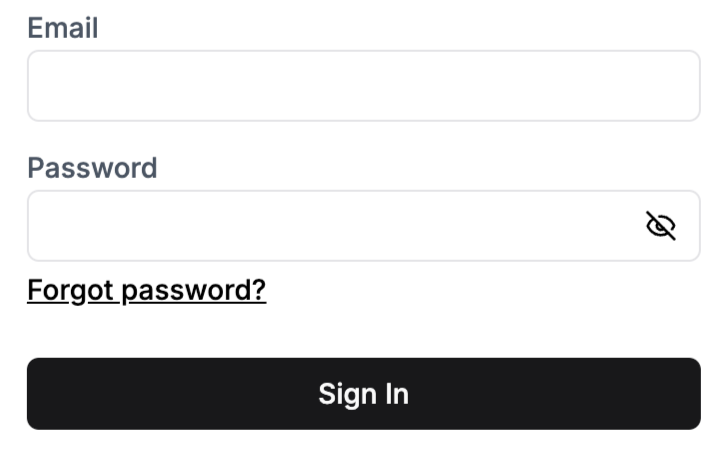
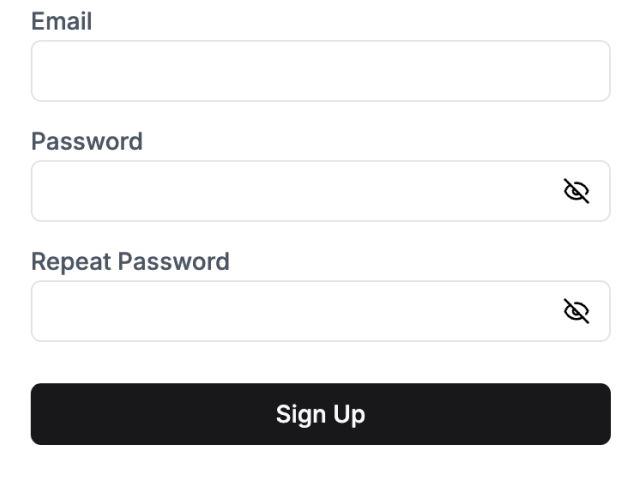
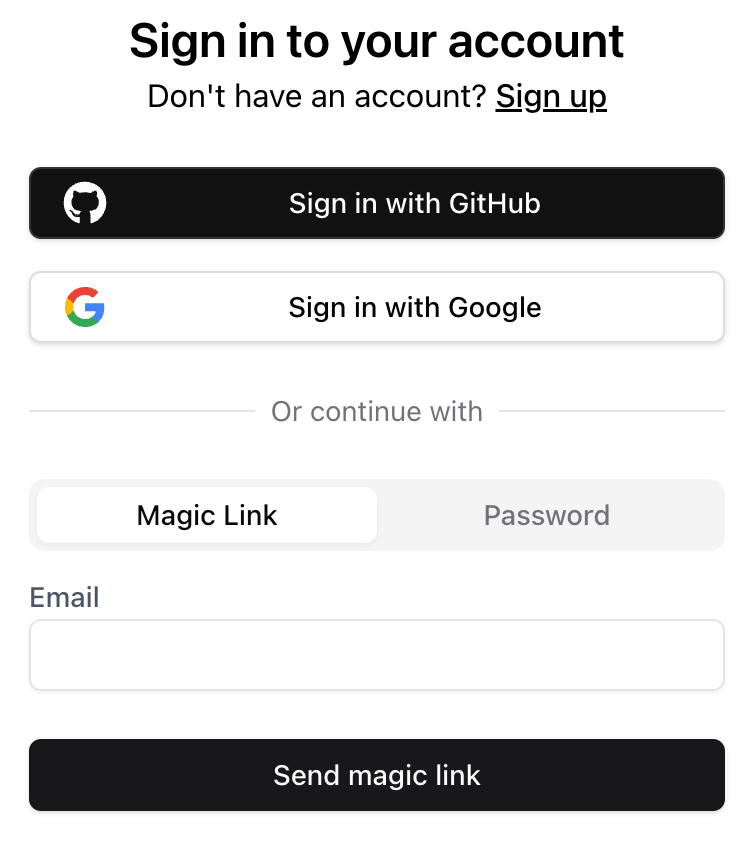
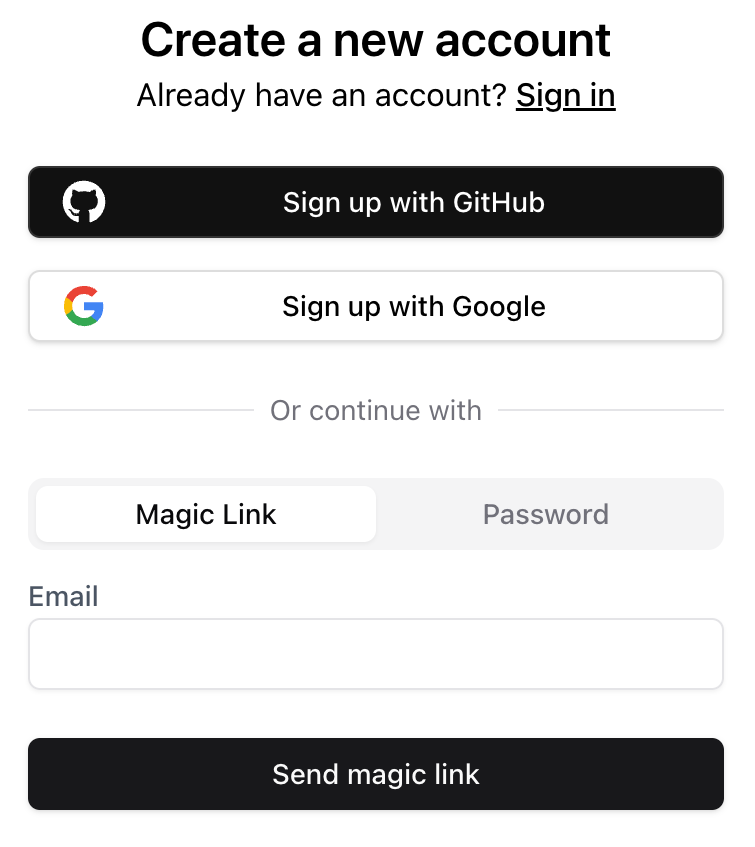

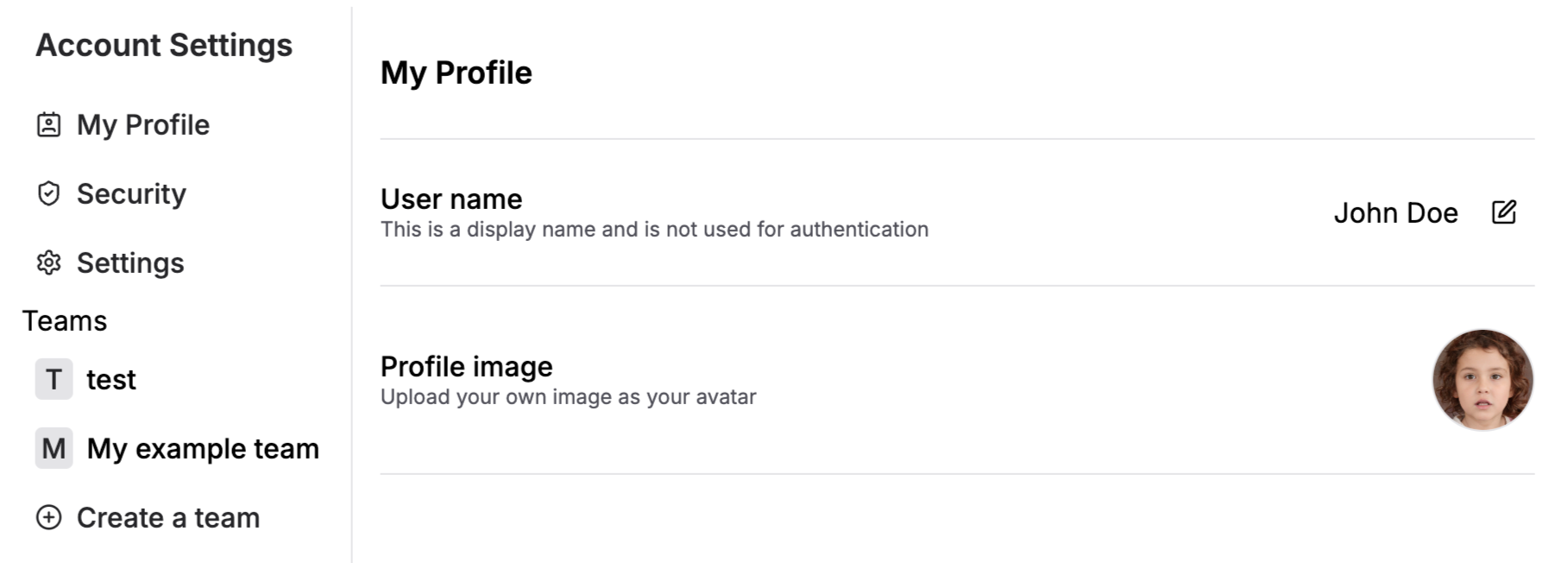
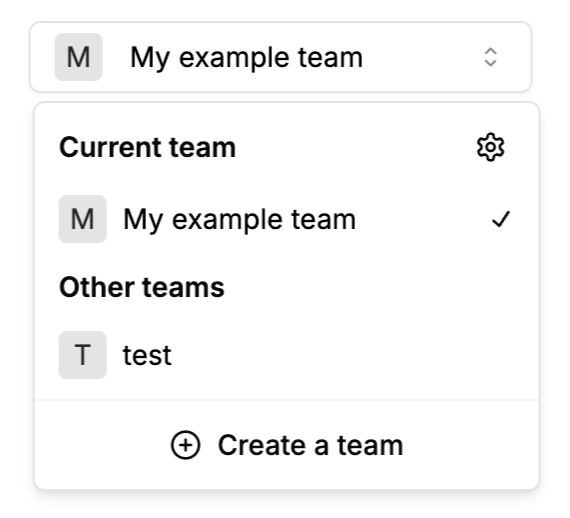
 You can import and use the `SelectedTeamSwitcher` component for the "current team" method. It updates the `selectedTeam` when a user selects a team:
```jsx
import { SelectedTeamSwitcher } from "@stackframe/stack";
export function MyPage() {
return (
You can import and use the `SelectedTeamSwitcher` component for the "current team" method. It updates the `selectedTeam` when a user selects a team:
```jsx
import { SelectedTeamSwitcher } from "@stackframe/stack";
export function MyPage() {
return (